> ## Documentation Index
> Fetch the complete documentation index at: https://docs.primeintellect.ai/llms.txt
> Use this file to discover all available pages before exploring further.
# Overview
> Command line interface for managing Prime Intellect compute, RL environments and code sandboxes.
The Prime Intellect CLI provides a powerful command-line interface for managing all of our Prime Intellect offerings.
Including:
* Managing compute resources on our platform
* Creating, publishing and installing RL environments from our environment hub
* Managing code sandboxes for secure code execution
Check out our [open source repository](https://github.com/PrimeIntellect-ai/prime-cli) on GitHub.
## Quick Start
1. Install uv (if not already installed):
```bash theme={null}
curl -LsSf https://astral.sh/uv/install.sh | sh
```
2. Install the CLI with uv:
```bash theme={null}
uv tool install prime
```
3. Authenticate:
```bash theme={null}
prime login
```
Alternatively you can also manually set your API key using `prime config set-api-key`
4. Configure SSH key for pod access:
```bash theme={null}
prime config set-ssh-key-path
```
You can generate your ssh keys on app.primeintellect.ai under the /dashboard/profile section. We recommend creating a dedicated directory for your Prime Intellect keys in your home directory, like `/Users//pi-keys`.
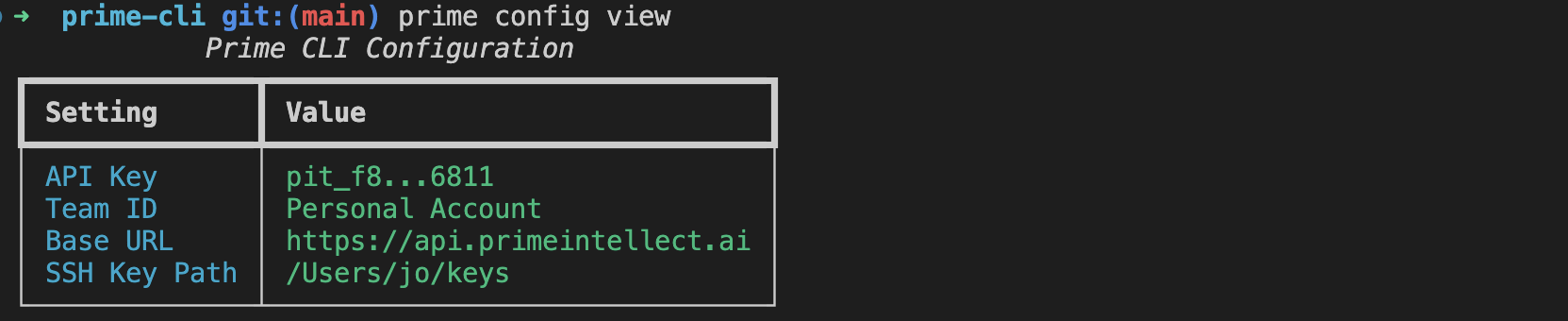
5\. Verify your configuration:
```bash theme={null}
prime config view
```
### Alternative Installation: Using pip
If you prefer not to use uv:
```bash theme={null}
pip install prime
```
## Key Features
* **GPU Resource Management**: Query and filter available GPU resources
* **Pod Management**: Create, monitor, and terminate compute pods
* **SSH Access**: Direct SSH access to running pods
* **Team Support**: Manage resources across team environments
## Basic Commands
```bash theme={null}
# List available GPUs
prime availability list
# Filter by GPU type
prime availability list --gpu-type H100_80GB
# Create a pod
prime pods create
# List your pods
prime pods list
# SSH into a pod
prime pods ssh
```
For detailed documentation on each command and feature, explore the sections above.
View and filter available GPU resources across providers using simple commands.
Create, monitor, and manage compute pods
directly from your terminal.
Configure connection settings and team accounts.
 ### Alternative Installation: Using pip
If you prefer not to use uv:
```bash theme={null}
pip install prime
```
## Key Features
* **GPU Resource Management**: Query and filter available GPU resources
* **Pod Management**: Create, monitor, and terminate compute pods
* **SSH Access**: Direct SSH access to running pods
* **Team Support**: Manage resources across team environments
## Basic Commands
```bash theme={null}
# List available GPUs
prime availability list
# Filter by GPU type
prime availability list --gpu-type H100_80GB
# Create a pod
prime pods create
# List your pods
prime pods list
# SSH into a pod
prime pods ssh
### Alternative Installation: Using pip
If you prefer not to use uv:
```bash theme={null}
pip install prime
```
## Key Features
* **GPU Resource Management**: Query and filter available GPU resources
* **Pod Management**: Create, monitor, and terminate compute pods
* **SSH Access**: Direct SSH access to running pods
* **Team Support**: Manage resources across team environments
## Basic Commands
```bash theme={null}
# List available GPUs
prime availability list
# Filter by GPU type
prime availability list --gpu-type H100_80GB
# Create a pod
prime pods create
# List your pods
prime pods list
# SSH into a pod
prime pods ssh