> ## Documentation Index
> Fetch the complete documentation index at: https://docs.primeintellect.ai/llms.txt
> Use this file to discover all available pages before exploring further.
# Browser Environments
> Guide to building and training browser-based environments with Prime Intellect and Browserbase.
# Multimodal Browser Environments in verifiers
**BrowserEnv now supports vision-based web browsing via Computer Use Agent (CUA) mode.**
Both modes are modes in verifiers and we provide examples for trying both. This guide covers the two interaction modes, how to get started, and walks through two real environments: a lightweight eval (`bb_demo.py`) and a full benchmark for training (`webvoyager_no_anti_bot.py`). It also covers BrowserEnv-specific pieces of RL training, including DOM and CUA training configurations and how to integrate with Lab.
***
## Two Modes of Browser Interaction
`BrowserEnv` is a unified `StatefulToolEnv` subclass that supports two operating modes, selected via the `mode` parameter. Both modes use [Browserbase](https://browserbase.com) as the browser provider.
### DOM Mode: Natural Language Control
DOM mode uses the [Stagehand](https://github.com/browserbase/stagehand) SDK to translate natural language instructions into browser actions. Stagehand runs its own LLM internally (configured via `stagehand_model`, defaults to `openai/gpt-4o-mini`) to interpret the page DOM and execute the appropriate operations.
The agent's tool surface is high-level and semantic:
* `navigate(url)`: go to a URL
* `observe(instruction)`: find possible actions matching a natural language description
* `act(instruction)`: execute an action described in natural language (click a button, fill a form)
* `extract(instruction, schema_json)`: extract structured data from the page
The agent never sees the rendered page. It works through Stagehand's abstraction of the DOM, which means it requires no coordinates, and no screenshots. This is fast and effective when pages have reliable semantic HTML.
DOM mode works best when actionable page state is exposed semantically through Stagehand. Visually ambiguous cases, especially overlays or elements that are easier to disambiguate by pixels, can still be easier in CUA.
**Stagehand routing:** When `proxy_model_to_stagehand=False` (default), Stagehand uses its own `stagehand_model` and `MODEL_API_KEY`. When `proxy_model_to_stagehand=True`, BrowserEnv injects the rollout client's model name, base URL, and API key into `observe`, `act`, and `extract`, so those Stagehand calls run through the same client/model endpoint as the rollout model.
### CUA Mode: Vision-Based Control (Multimodal)
CUA mode gives the agent a live screenshot of the rendered page after every action. The agent sees pixels and acts via screen coordinates, the same way a human would interact with a screen.
The agent's tool surface is low-level and coordinate-based:
* `click(x, y, button)`: click at screen coordinates
* `double_click(x, y)`: double-click at coordinates
* `type_text(text)`: type text into the focused element
* `keypress(keys)`: press keyboard keys
* `scroll(x, y, scroll_x, scroll_y)`: scroll at a position
* `goto(url)`: navigate to a URL
* `back()` / `forward()`: browser history navigation
* `wait(time_ms)`: wait for a specified duration
* `screenshot()`: capture the current page state
Each action returns a multimodal response: a text status block (URL, viewport dimensions, success/error) and a base64 PNG screenshot encoded as an `image_url` content block. The model processes both. After the tool call returns, `BrowserEnv` moves screenshot parts out of tool messages into a trailing user message. When `keep_recent_screenshots` is set, older screenshots are replaced with `[Screenshot removed to save context]` placeholders.
**When to use it:** Tasks that require visual understanding, such as navigating unfamiliar UIs, interacting with canvas-rendered apps, clicking elements that lack semantic markup, or any workflow where a human would need to *look* at the screen to proceed.
### Side-by-Side Comparison
| Aspect | DOM Mode | CUA Mode |
| ---------------------- | -------------------------------------------------------------- | -------------------------------------------------------------------------------- |
| **Control paradigm** | Natural language via Stagehand | Vision-based screen coordinates |
| **Observation space** | Text (DOM abstractions) | Multimodal (screenshots + text) |
| **Server requirement** | None (Stagehand SDK direct) | CUA server (auto-deployed or manual) |
| **Extra API key** | `MODEL_API_KEY` by default, or the rollout client when proxied | The CUA server template can forward `OPENAI_API_KEY` internally if it is present |
| **Best for** | Structured web interactions | Visual/complex UIs |
| **Speed** | Faster (direct DOM manipulation) | Slower (screenshot round-trips) |
***
## Getting Started
### Installation
Both example environments require the `browser` extra:
```bash theme={null}
# Install verifiers with browser support
uv pip install "verifiers[browser]"
```
### Environment Variables
```bash theme={null}
# Required for both modes
export BROWSERBASE_API_KEY="your-api-key"
export BROWSERBASE_PROJECT_ID="your-project-id"
# Required for LLM judge model - pick your favorite model/your custom judge model, here we use OpenAI as an example
export OPENAI_API_KEY="your-openai-key"
# Required for DOM mode only (Stagehand's internal LLM) - pick your favorite model provider
export MODEL_API_KEY="your-llm-api-key"
```
### Running the Examples
Both examples ship with the same task: navigate to the Prime Intellect homepage and read the headline. Note to do the below, you need to have a prime account.
```bash theme={null}
# DOM mode
prime eval run browser-dom-example -m openai/gpt-4.1-mini
# CUA mode (pre-built image, fastest and recommended)
prime eval run browser-cua-example -m openai/gpt-4.1-mini
```
***
## CUA Mode Execution Backends
CUA mode requires a **CUA server** — a lightweight TypeScript HTTP service that bridges the Python browser agent and the browser. Under the hood, Browserbase uses [Understudy](https://github.com/browserbase/stagehand/tree/main/packages/core/lib/v3/understudy), a custom and powerful Chrome DevTools Protocol (CDP) driver developed at Browserbase as part of [Stagehand](https://github.com/browserbase/stagehand), the AI browser automation framework. Understudy was built to overcome limitations in Playwright's built-in automation capabilities (e.g. more granular input control and richer session introspection). Because Understudy's CDP engine is written in TypeScript, a thin server layer is needed to expose it as a REST API that the Python environment can call. The CUA server is that layer — it receives coordinate-based action requests over HTTP, translates into CDP commands via Understudy, and returns screenshots back to the agent.
Three execution modes are available, from fastest to most flexible:
### 1. Pre-built Docker Image (Default)
Uses `deepdream19/cua-server:latest` with everything pre-installed. Startup takes \~5–10 seconds. This is the recommended approach.
```bash theme={null}
prime eval run browser-cua-example -m openai/gpt-4.1-mini -b https://api.openai.com/v1 -k OPENAI_API_KEY
```
### 2. Binary Upload
Builds and uploads a custom CUA server binary to a sandbox at runtime. Startup takes \~30–60 seconds. Use this when you need a modified server.
```bash theme={null}
prime eval run browser-cua-example -m openai/gpt-4.1-mini -a '{"use_prebuilt_image": false}'
```
### 3. Manual Server (Local Development)
Connect to a locally running CUA server. Start the server yourself, then point the environment at it:
```bash theme={null}
# Terminal 1: start the CUA server
cd assets/templates/browserbase/cua && pnpm dev
# Terminal 2: run with sandbox disabled
prime eval run browser-cua-exampl openai/gpt-4.1-mini -a '{"use_sandbox": false}'
```
### Screenshot Management
CUA mode captures a screenshot after every action. Two parameters control how screenshots flow:
* `save_screenshots` (bool): persist every screenshot to disk as timestamped PNGs in `screenshot_dir` (defaults to `./screenshots`). The CUA example defaults this to `False`; the `BrowserEnv` class itself defaults to `True`.
* `keep_recent_screenshots` (int | None): how many recent screenshots to retain in the conversation context window sent to the model. Defaults to `2`. Set to `None` to keep all (higher token cost).
***
## Example Environments
### [`bb_demo`](https://app.primeintellect.ai/dashboard/environments/prime/bb-demo): Quick Eval with Click Visualization
`bb_demo.py` is a lightweight single-task environment designed for quick CUA mode evaluation and debugging. It serves as a hello world for multimodal browser environments and pairs a simple browsing task with a custom `CUAMode` subclass that annotates saved screenshots with click markers.
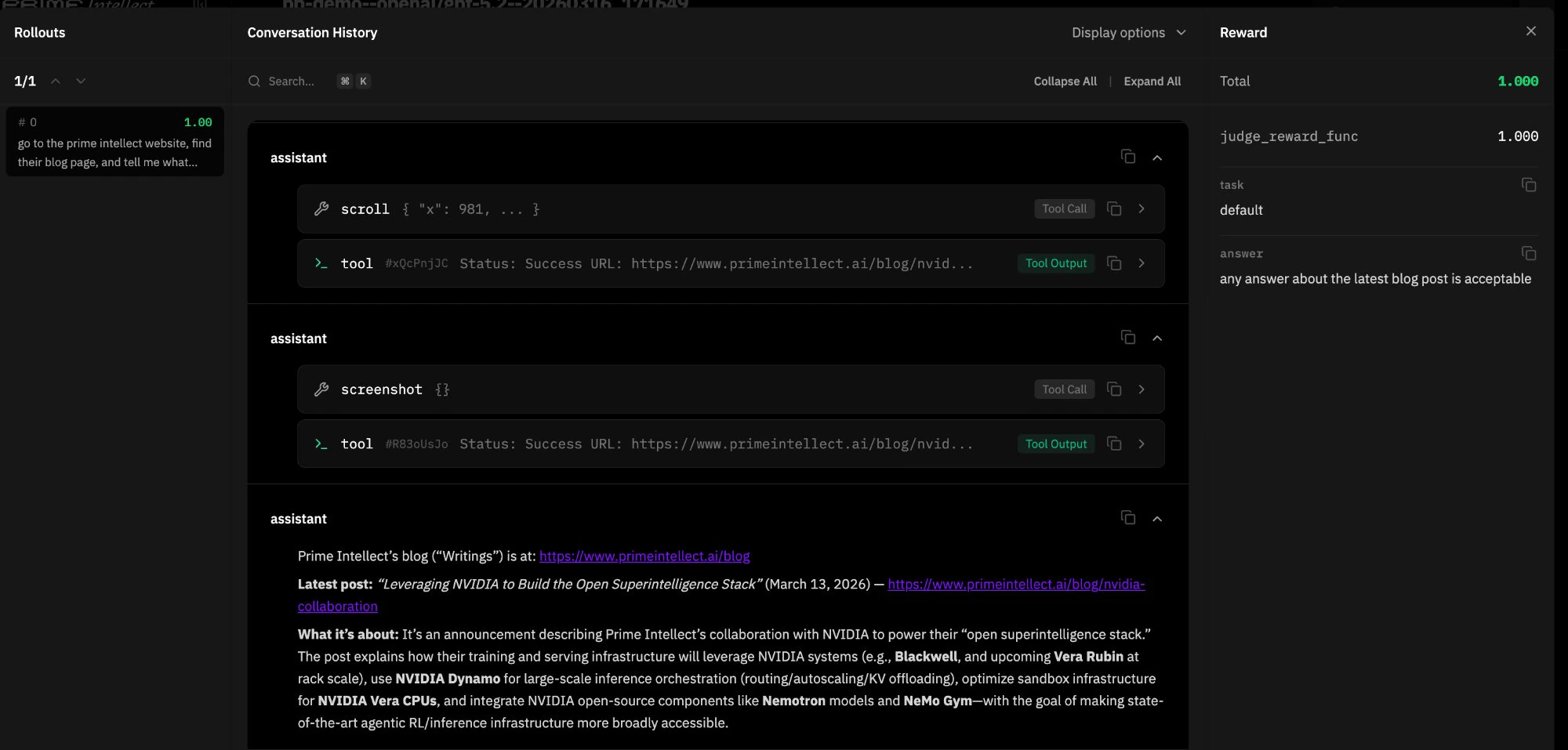 **Task.** The agent is asked to navigate to the Prime Intellect website, find the blog page, and summarize the latest post. A `JudgeRubric` backed by `gpt-4.1-mini` evaluates whether the agent's response adequately describes the blog content, returning `1.0` for "yes" and `0.0` otherwise.
**Click marker overlay.** The environment subclasses `CUAMode` as `ClickMarkerCUAMode`, which overrides `click()` and `double_click()` to store the target (x, y) coordinates before each action. When the resulting screenshot is saved to disk, `_save_screenshot_with_marker()` uses Pillow to composite a visual marker (concentric circles, crosshairs, coordinate label) onto the PNG. The marker is drawn on the *saved* file only. The screenshot returned to the model in conversation context is unmodified, keeping the agent's visual input clean while giving developers an annotated record of every click.
**Subclassing pattern.** `ClickMarkerBrowserEnv` intercepts `BrowserEnv.__init__` when `mode="cua"`. It manually extracts all CUA-specific parameters from `kwargs`, bypasses the parent's mode setup by calling `StatefulToolEnv.__init__` directly, then constructs and registers the custom `ClickMarkerCUAMode`. For DOM mode, it delegates entirely to the parent. This pattern is useful any time you need to swap in a custom mode implementation without forking `BrowserEnv`.
**Usage:**
```python theme={null}
from bb_demo import load_environment
env = load_environment(
save_screenshots=True,
screenshot_dir="./my_screenshots",
mark_clicks=True,
click_marker_radius=15,
)
```
Requires `pip install Pillow`. Without it, screenshots still save without markers and the environment shows a warning at startup.
### [`webvoyager_no_anti_bot`](https://app.primeintellect.ai/dashboard/environments/browserbase/webvoyager-no-anti-bot): Training-Scale Benchmark
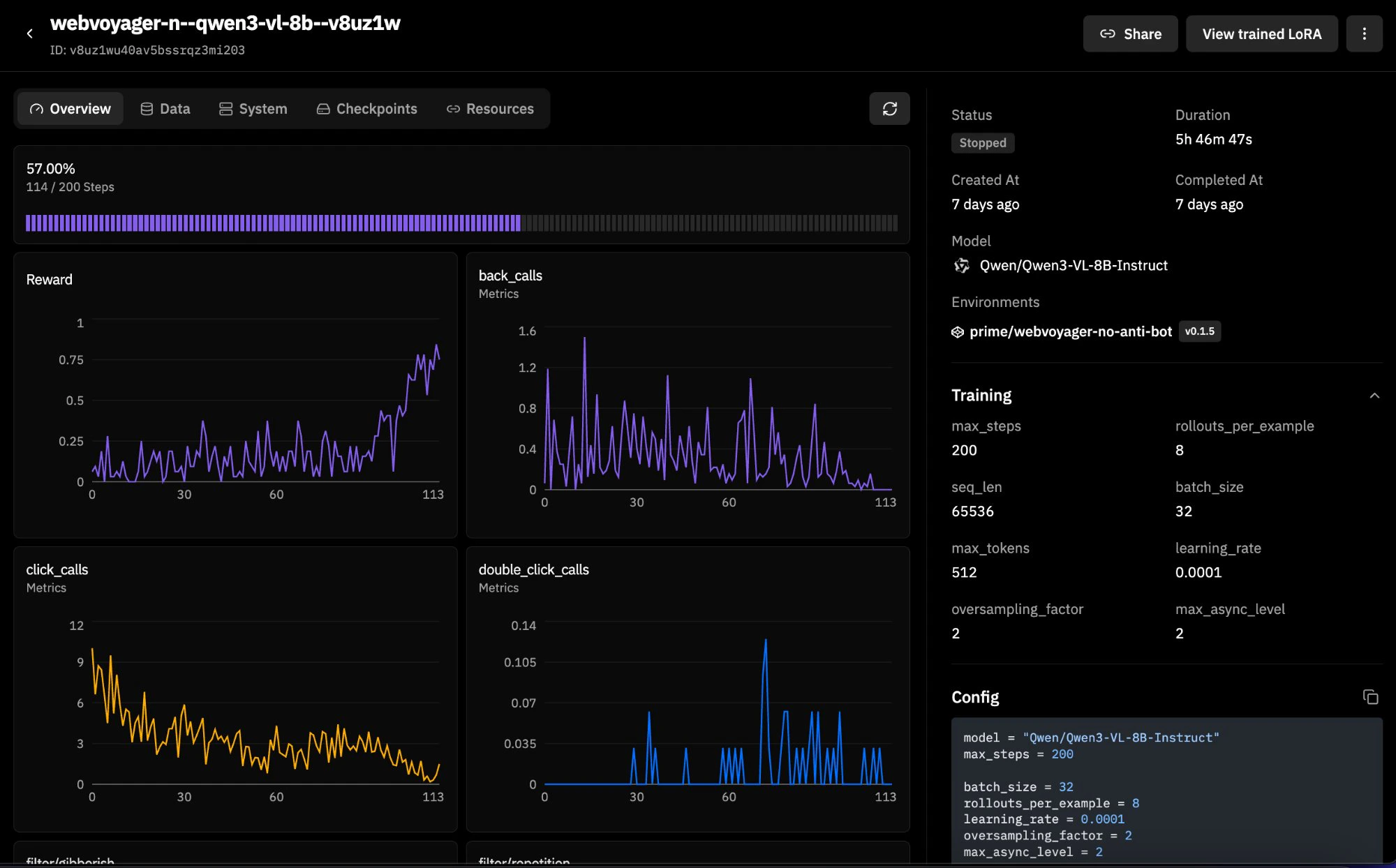
WebVoyager is a 600-task web navigation benchmark spanning real websites (Allrecipes, Amazon, Apple, ArXiv, GitHub, Google Flights/Maps/Search, ESPN, and more). This version filters out 43 tasks from `dictionary.cambridge.org` that are blocked by Cloudflare anti-bot protection, leaving 93.3% of the original dataset intact. It supports both DOM and CUA modes, making it a good candidate for RL training runs. Here is an [example training run](https://app.primeintellect.ai/training/shared/v8uz1wu40av5bssrqz3mi203) with Qwen3-VL-8B-Instruct:
**Task.** The agent is asked to navigate to the Prime Intellect website, find the blog page, and summarize the latest post. A `JudgeRubric` backed by `gpt-4.1-mini` evaluates whether the agent's response adequately describes the blog content, returning `1.0` for "yes" and `0.0` otherwise.
**Click marker overlay.** The environment subclasses `CUAMode` as `ClickMarkerCUAMode`, which overrides `click()` and `double_click()` to store the target (x, y) coordinates before each action. When the resulting screenshot is saved to disk, `_save_screenshot_with_marker()` uses Pillow to composite a visual marker (concentric circles, crosshairs, coordinate label) onto the PNG. The marker is drawn on the *saved* file only. The screenshot returned to the model in conversation context is unmodified, keeping the agent's visual input clean while giving developers an annotated record of every click.
**Subclassing pattern.** `ClickMarkerBrowserEnv` intercepts `BrowserEnv.__init__` when `mode="cua"`. It manually extracts all CUA-specific parameters from `kwargs`, bypasses the parent's mode setup by calling `StatefulToolEnv.__init__` directly, then constructs and registers the custom `ClickMarkerCUAMode`. For DOM mode, it delegates entirely to the parent. This pattern is useful any time you need to swap in a custom mode implementation without forking `BrowserEnv`.
**Usage:**
```python theme={null}
from bb_demo import load_environment
env = load_environment(
save_screenshots=True,
screenshot_dir="./my_screenshots",
mark_clicks=True,
click_marker_radius=15,
)
```
Requires `pip install Pillow`. Without it, screenshots still save without markers and the environment shows a warning at startup.
### [`webvoyager_no_anti_bot`](https://app.primeintellect.ai/dashboard/environments/browserbase/webvoyager-no-anti-bot): Training-Scale Benchmark
WebVoyager is a 600-task web navigation benchmark spanning real websites (Allrecipes, Amazon, Apple, ArXiv, GitHub, Google Flights/Maps/Search, ESPN, and more). This version filters out 43 tasks from `dictionary.cambridge.org` that are blocked by Cloudflare anti-bot protection, leaving 93.3% of the original dataset intact. It supports both DOM and CUA modes, making it a good candidate for RL training runs. Here is an [example training run](https://app.primeintellect.ai/training/shared/v8uz1wu40av5bssrqz3mi203) with Qwen3-VL-8B-Instruct:
 **Dataset.** Tasks are loaded from a local JSONL file (`WebVoyager_data_clean.jsonl`). Each row has a natural language task (`ques`), a starting URL (`web`), a website name (`web_name`), and a task ID. There are no ground-truth answers because WebVoyager is task-completion-based rather than answer-matching. You can filter by website with `web_filter` (e.g., `web_filter="Amazon"`) and limit the number of examples with `num_examples`.
**Evaluation.** Since there are no explicit answers, the environment uses a task-completion judge. The agent's entire multi-turn trajectory is rendered into a structured text transcript by `WebVoyagerTrajectoryParser`, a custom `vf.Parser` subclass. This transcript includes assistant messages, tool calls with normalized arguments, and truncated tool results, while images are excluded. The transcript is capped at 12,000 characters to keep judge context manageable. The judge prompt instructs the LLM to verify that the agent navigated to the correct site, performed the required actions, and reached the requested end state. If the agent made no tool calls at all, the reward is automatically `0.0` without consulting the judge.
**Transcript rendering.** `render_webvoyager_transcript()` walks the completion messages and emits a line-by-line log: `ASSISTANT:` for text, `TOOL_CALL name({args})` for tool invocations, and `TOOL_RESULT:` for tool responses (truncated to 500 characters each). This keeps the judge grounded in what actually happened rather than what the agent claims happened. The judge prompt explicitly says to treat unsupported assertions as insufficient evidence.
**Mode flexibility.** `load_environment()` accepts `mode="dom"` or `mode="cua"` and passes all relevant configuration through to `BrowserEnv`. Both modes work against the same dataset and rubric.
**Usage:**
```bash theme={null}
# All 600 tasks, DOM mode
prime eval run webvoyager-no-anti-bot -m openai/gpt-4.1-mini
# CUA mode, filtered to Amazon tasks
prime eval run webvoyager-no-anti-bot -m openai/gpt-4.1-mini -a '{"mode": "cua", "web_filter": "Amazon"}'
# 10 examples for a quick test
prime eval run webvoyager-no-anti-bot -m openai/gpt-4.1-mini -a '{"num_examples": 10}'
```
Note: the full 600-task suite takes a while to run. For initial testing, use `num_examples` or `web_filter` to scope it down.
***
## Building Your Own Browser Environment
Both examples follow the standard verifiers environment contract: a Python module exposing `load_environment(**kwargs) -> vf.Environment`. The pattern is:
1. **Define a dataset**: a HuggingFace `Dataset` with `question`, `answer`, and optionally `start_url` and `task_id` columns. For task-completion benchmarks where there's no ground-truth answer (like WebVoyager), set `answer` to an empty string and rely on a task-completion judge.
2. **Define a rubric**: typically a `JudgeRubric` with an LLM judge. For answer-matching tasks, the judge compares agent output to the expected answer. For task-completion tasks, subclass `vf.Parser` to render the trajectory into a judge-friendly transcript and evaluate whether the task was actually done.
3. **Construct a `BrowserEnv`**: pass `mode`, dataset, rubric, system prompt, and any mode-specific configuration.
4. **Package it**: add a `pyproject.toml` with `verifiers[browser]>=0.1.8` as a dependency.
```python theme={null}
import verifiers as vf
from verifiers.envs.integrations.browser_env import BrowserEnv
from datasets import Dataset
def load_environment(max_turns: int = 15, **kwargs) -> vf.Environment:
dataset = Dataset.from_dict({
"question": ["What is the title of the first blog post?"],
"answer": ["Expected answer here"],
"start_url": ["https://example.com/blog"],
})
rubric = vf.JudgeRubric(judge_model="gpt-4o-mini", judge_prompt="...")
rubric.add_reward_func(your_judge_func, weight=1.0)
return BrowserEnv(
mode="cua", # or "dom"
dataset=dataset,
rubric=rubric,
max_turns=max_turns,
system_prompt="...",
**kwargs,
)
```
Then install and evaluate:
```bash theme={null}
uv pip install -e ./environments/your_env
prime eval run your-env -m openai/gpt-4.1-mini
```
***
## RL Training with Browser Environments
Browserbase integrates with Prime Intellect through `BrowserEnv`. Browserbase handles the cloud browsers, `BrowserEnv` wraps those sessions as a verifiers environment, and Prime runs the evaluation or RL training loop.
In practice, that means the same BrowserEnv configuration can be used in both evaluation and training. The training-specific questions are usually:
* whether you want `mode="dom"` or `mode="cua"`
* whether Stagehand should keep its own model or be routed through the rollout model
* which browser/session settings you want in the `[[env]]` config
### Before You Train
1. Validate the environment with evals first. Reward quality matters more than running a large training job quickly.
2. Check reward distribution. If everything is `0.0` or everything is `1.0`, the run will not teach you much.
3. Start with a small training run before scaling up browser minutes and GPU time.
### Training Target in This Repo
`webvoyager_no_anti_bot` is the training-scale BrowserEnv example in this repo.
* 600 tasks in the filtered WebVoyager dataset
* supports both `mode="dom"` and `mode="cua"`
* uses task-completion reward rather than answer matching
* renders assistant text, tool calls, and truncated tool results into the judge transcript
* returns `0.0` reward immediately if a rollout makes no tool calls
That makes it the cleanest local reference for comparing DOM and CUA training without changing the benchmark itself.
Example Prime DOM training run: [WebVoyager RL run](https://app.primeintellect.ai/training/shared/aixtf0gfgstmasfsugb9x3bg).
Example Prime CUA training run: [WebVoyager RL run](https://app.primeintellect.ai/training/shared/v8uz1wu40av5bssrqz3mi203).
### DOM Training
A DOM sample run can be done with the following configuration:
* model: `Qwen/Qwen3-4B-Instruct-2507`
* `batch_size = 64`
* `rollouts_per_example = 8`
* environment id: `browserbase/webvoyager-no-anti-bot`
By default, Stagehand keeps using its own `stagehand_model` and `MODEL_API_KEY`. If you want the trained rollout model to also handle Stagehand's DOM operations, enable `proxy_model_to_stagehand=true`. In that configuration, `observe`, `act`, and `extract` are routed through the same client/model endpoint as the rollout model.
The checked-in sample does not add extra BrowserEnv args. Add them when you want shared Stagehand routing:
```toml theme={null}
model = "Qwen/Qwen3-4B-Instruct-2507"
env_files = ["secrets.env"]
max_steps = 100
batch_size = 64
rollouts_per_example = 8
[sampling]
max_tokens = 1024
[[env]]
id = "browserbase/webvoyager-no-anti-bot"
args = { mode = "dom", proxy_model_to_stagehand = true }
```
### CUA Training
A vision-language sample run can be done with the following configuration:
* model: `Qwen/Qwen3-VL-4B-Instruct`
* `batch_size = 32`
* `rollouts_per_example = 4`
* environment id: `prime/webvoyager-no-anti-bot`
* BrowserEnv args: `mode = "cua"`, `max_turns = 10`, `viewport_width = 800`, `viewport_height = 600`, `keep_recent_screenshots = 2`, `memory_gb = 6`
Sample `.toml` file:
```toml theme={null}
model = "Qwen/Qwen3-VL-4B-Instruct"
env_files = ["secrets.env"]
max_steps = 100
batch_size = 32
rollouts_per_example = 4
[sampling]
max_tokens = 512
[[env]]
id = "prime/webvoyager-no-anti-bot"
args = { mode = "cua", max_turns = 10, viewport_width = 800, viewport_height = 600, keep_recent_screenshots = 2, memory_gb = 6 }
```
### Credentials and Workflow Notes
* Always provide `BROWSERBASE_API_KEY` and `BROWSERBASE_PROJECT_ID` when BrowserEnv is creating Browserbase sessions.
* DOM mode needs `MODEL_API_KEY` unless you route Stagehand through the rollout model with `proxy_model_to_stagehand=true`.
* CUA mode uses the same BrowserEnv backend choices as evaluation. The current bundled CUA server template forwards `OPENAI_API_KEY` into Stagehand if it is present, but that is a server-template detail rather than a separate BrowserEnv training argument.
* Browserbase credentials belong in environment variables or training secrets, not in the TOML file.
* The same BrowserEnv args used with `prime eval run -a '{...}'` belong in the training config under `[[env]]` `args = { ... }`.
* BrowserEnv does not expose sandbox authentication as a constructor argument.
Both Hosted Training and self-managed `prime-rl` use the same BrowserEnv-side mode choice and environment args. The difference is in how the training job is orchestrated, not in how BrowserEnv behaves.
### Picking DOM vs CUA for Training
| Question | DOM Mode | CUA Mode |
| ---------------------------------------------- | ----------------------------------------------------------------------------------------------------- | --------------------------------------------- |
| What does the model observe? | Semantic browser actions through Stagehand | Screenshots plus tool status text |
| What kind of model fits best? | Text models | Vision-language models |
| How do Stagehand calls behave during training? | Separate `stagehand_model` by default, or shared rollout routing with `proxy_model_to_stagehand=true` | Not applicable to the agent-side tool surface |
| What usually matters most? | Semantic reliability and cheaper context | Visual grounding and UI disambiguation |
### Performance Notes
* Browser training rollouts are slower than text-only environments because each rollout step interacts with a real browser session.
* CUA mode is heavier than DOM mode because screenshots must be rendered, carried in context, and consumed by the model.
* If your task does not need visual grounding, DOM mode is usually the faster and cheaper place to start.
***
## Quick Reference
### DOM Mode Arguments
| Argument | Default | Description |
| -------------------------- | ----------------------- | -------------------------------------------- |
| `project_id` | Required | Browserbase project ID |
| `browserbase_api_key_var` | `"BROWSERBASE_API_KEY"` | Env var for Browserbase API key |
| `stagehand_model` | `"openai/gpt-4o-mini"` | Model for Stagehand DOM operations |
| `model_api_key_var` | `"MODEL_API_KEY"` | Env var for Stagehand's API key |
| `max_turns` | `10` | Max conversation turns |
| `proxy_model_to_stagehand` | `False` | Route Stagehand LLM calls through eval model |
### CUA Mode Arguments
| Argument | Default | Description |
| ------------------------- | --------------------------------- | ----------------------------------------------- |
| `use_sandbox` | `True` | Auto-deploy CUA server to sandbox |
| `use_prebuilt_image` | `True` | Use pre-built Docker image (fastest) |
| `prebuilt_image` | `"deepdream19/cua-server:latest"` | Docker image for sandbox |
| `server_url` | `"http://localhost:3000"` | CUA server URL (when `use_sandbox=False`) |
| `viewport_width` | `1024` | Browser viewport width |
| `viewport_height` | `768` | Browser viewport height |
| `save_screenshots` | `True` | Persist screenshots to disk |
| `keep_recent_screenshots` | `2` | Screenshots in model context (`None` = all) |
| `max_turns` | `15` | Max conversation turns |
| `env` | `"BROWSERBASE"` | Browser provider (`"LOCAL"` or `"BROWSERBASE"`) |
| `proxies` | `False` | Enable Browserbase proxies |
| `advanced_stealth` | `False` | Enable anti-bot detection stealth mode |
| `cpu_cores` | `2` | Sandbox CPU cores |
| `memory_gb` | `4` | Sandbox memory |
### CUA Execution Modes
| Mode | Flag | Startup | Use Case |
| --------------- | -------------------------- | -------- | ------------- |
| Pre-built image | *(default)* | \~5-10s | Production |
| Binary upload | `use_prebuilt_image=false` | \~30-60s | Custom server |
| Manual server | `use_sandbox=false` | Instant | Local dev |
**Dataset.** Tasks are loaded from a local JSONL file (`WebVoyager_data_clean.jsonl`). Each row has a natural language task (`ques`), a starting URL (`web`), a website name (`web_name`), and a task ID. There are no ground-truth answers because WebVoyager is task-completion-based rather than answer-matching. You can filter by website with `web_filter` (e.g., `web_filter="Amazon"`) and limit the number of examples with `num_examples`.
**Evaluation.** Since there are no explicit answers, the environment uses a task-completion judge. The agent's entire multi-turn trajectory is rendered into a structured text transcript by `WebVoyagerTrajectoryParser`, a custom `vf.Parser` subclass. This transcript includes assistant messages, tool calls with normalized arguments, and truncated tool results, while images are excluded. The transcript is capped at 12,000 characters to keep judge context manageable. The judge prompt instructs the LLM to verify that the agent navigated to the correct site, performed the required actions, and reached the requested end state. If the agent made no tool calls at all, the reward is automatically `0.0` without consulting the judge.
**Transcript rendering.** `render_webvoyager_transcript()` walks the completion messages and emits a line-by-line log: `ASSISTANT:` for text, `TOOL_CALL name({args})` for tool invocations, and `TOOL_RESULT:` for tool responses (truncated to 500 characters each). This keeps the judge grounded in what actually happened rather than what the agent claims happened. The judge prompt explicitly says to treat unsupported assertions as insufficient evidence.
**Mode flexibility.** `load_environment()` accepts `mode="dom"` or `mode="cua"` and passes all relevant configuration through to `BrowserEnv`. Both modes work against the same dataset and rubric.
**Usage:**
```bash theme={null}
# All 600 tasks, DOM mode
prime eval run webvoyager-no-anti-bot -m openai/gpt-4.1-mini
# CUA mode, filtered to Amazon tasks
prime eval run webvoyager-no-anti-bot -m openai/gpt-4.1-mini -a '{"mode": "cua", "web_filter": "Amazon"}'
# 10 examples for a quick test
prime eval run webvoyager-no-anti-bot -m openai/gpt-4.1-mini -a '{"num_examples": 10}'
```
Note: the full 600-task suite takes a while to run. For initial testing, use `num_examples` or `web_filter` to scope it down.
***
## Building Your Own Browser Environment
Both examples follow the standard verifiers environment contract: a Python module exposing `load_environment(**kwargs) -> vf.Environment`. The pattern is:
1. **Define a dataset**: a HuggingFace `Dataset` with `question`, `answer`, and optionally `start_url` and `task_id` columns. For task-completion benchmarks where there's no ground-truth answer (like WebVoyager), set `answer` to an empty string and rely on a task-completion judge.
2. **Define a rubric**: typically a `JudgeRubric` with an LLM judge. For answer-matching tasks, the judge compares agent output to the expected answer. For task-completion tasks, subclass `vf.Parser` to render the trajectory into a judge-friendly transcript and evaluate whether the task was actually done.
3. **Construct a `BrowserEnv`**: pass `mode`, dataset, rubric, system prompt, and any mode-specific configuration.
4. **Package it**: add a `pyproject.toml` with `verifiers[browser]>=0.1.8` as a dependency.
```python theme={null}
import verifiers as vf
from verifiers.envs.integrations.browser_env import BrowserEnv
from datasets import Dataset
def load_environment(max_turns: int = 15, **kwargs) -> vf.Environment:
dataset = Dataset.from_dict({
"question": ["What is the title of the first blog post?"],
"answer": ["Expected answer here"],
"start_url": ["https://example.com/blog"],
})
rubric = vf.JudgeRubric(judge_model="gpt-4o-mini", judge_prompt="...")
rubric.add_reward_func(your_judge_func, weight=1.0)
return BrowserEnv(
mode="cua", # or "dom"
dataset=dataset,
rubric=rubric,
max_turns=max_turns,
system_prompt="...",
**kwargs,
)
```
Then install and evaluate:
```bash theme={null}
uv pip install -e ./environments/your_env
prime eval run your-env -m openai/gpt-4.1-mini
```
***
## RL Training with Browser Environments
Browserbase integrates with Prime Intellect through `BrowserEnv`. Browserbase handles the cloud browsers, `BrowserEnv` wraps those sessions as a verifiers environment, and Prime runs the evaluation or RL training loop.
In practice, that means the same BrowserEnv configuration can be used in both evaluation and training. The training-specific questions are usually:
* whether you want `mode="dom"` or `mode="cua"`
* whether Stagehand should keep its own model or be routed through the rollout model
* which browser/session settings you want in the `[[env]]` config
### Before You Train
1. Validate the environment with evals first. Reward quality matters more than running a large training job quickly.
2. Check reward distribution. If everything is `0.0` or everything is `1.0`, the run will not teach you much.
3. Start with a small training run before scaling up browser minutes and GPU time.
### Training Target in This Repo
`webvoyager_no_anti_bot` is the training-scale BrowserEnv example in this repo.
* 600 tasks in the filtered WebVoyager dataset
* supports both `mode="dom"` and `mode="cua"`
* uses task-completion reward rather than answer matching
* renders assistant text, tool calls, and truncated tool results into the judge transcript
* returns `0.0` reward immediately if a rollout makes no tool calls
That makes it the cleanest local reference for comparing DOM and CUA training without changing the benchmark itself.
Example Prime DOM training run: [WebVoyager RL run](https://app.primeintellect.ai/training/shared/aixtf0gfgstmasfsugb9x3bg).
Example Prime CUA training run: [WebVoyager RL run](https://app.primeintellect.ai/training/shared/v8uz1wu40av5bssrqz3mi203).
### DOM Training
A DOM sample run can be done with the following configuration:
* model: `Qwen/Qwen3-4B-Instruct-2507`
* `batch_size = 64`
* `rollouts_per_example = 8`
* environment id: `browserbase/webvoyager-no-anti-bot`
By default, Stagehand keeps using its own `stagehand_model` and `MODEL_API_KEY`. If you want the trained rollout model to also handle Stagehand's DOM operations, enable `proxy_model_to_stagehand=true`. In that configuration, `observe`, `act`, and `extract` are routed through the same client/model endpoint as the rollout model.
The checked-in sample does not add extra BrowserEnv args. Add them when you want shared Stagehand routing:
```toml theme={null}
model = "Qwen/Qwen3-4B-Instruct-2507"
env_files = ["secrets.env"]
max_steps = 100
batch_size = 64
rollouts_per_example = 8
[sampling]
max_tokens = 1024
[[env]]
id = "browserbase/webvoyager-no-anti-bot"
args = { mode = "dom", proxy_model_to_stagehand = true }
```
### CUA Training
A vision-language sample run can be done with the following configuration:
* model: `Qwen/Qwen3-VL-4B-Instruct`
* `batch_size = 32`
* `rollouts_per_example = 4`
* environment id: `prime/webvoyager-no-anti-bot`
* BrowserEnv args: `mode = "cua"`, `max_turns = 10`, `viewport_width = 800`, `viewport_height = 600`, `keep_recent_screenshots = 2`, `memory_gb = 6`
Sample `.toml` file:
```toml theme={null}
model = "Qwen/Qwen3-VL-4B-Instruct"
env_files = ["secrets.env"]
max_steps = 100
batch_size = 32
rollouts_per_example = 4
[sampling]
max_tokens = 512
[[env]]
id = "prime/webvoyager-no-anti-bot"
args = { mode = "cua", max_turns = 10, viewport_width = 800, viewport_height = 600, keep_recent_screenshots = 2, memory_gb = 6 }
```
### Credentials and Workflow Notes
* Always provide `BROWSERBASE_API_KEY` and `BROWSERBASE_PROJECT_ID` when BrowserEnv is creating Browserbase sessions.
* DOM mode needs `MODEL_API_KEY` unless you route Stagehand through the rollout model with `proxy_model_to_stagehand=true`.
* CUA mode uses the same BrowserEnv backend choices as evaluation. The current bundled CUA server template forwards `OPENAI_API_KEY` into Stagehand if it is present, but that is a server-template detail rather than a separate BrowserEnv training argument.
* Browserbase credentials belong in environment variables or training secrets, not in the TOML file.
* The same BrowserEnv args used with `prime eval run -a '{...}'` belong in the training config under `[[env]]` `args = { ... }`.
* BrowserEnv does not expose sandbox authentication as a constructor argument.
Both Hosted Training and self-managed `prime-rl` use the same BrowserEnv-side mode choice and environment args. The difference is in how the training job is orchestrated, not in how BrowserEnv behaves.
### Picking DOM vs CUA for Training
| Question | DOM Mode | CUA Mode |
| ---------------------------------------------- | ----------------------------------------------------------------------------------------------------- | --------------------------------------------- |
| What does the model observe? | Semantic browser actions through Stagehand | Screenshots plus tool status text |
| What kind of model fits best? | Text models | Vision-language models |
| How do Stagehand calls behave during training? | Separate `stagehand_model` by default, or shared rollout routing with `proxy_model_to_stagehand=true` | Not applicable to the agent-side tool surface |
| What usually matters most? | Semantic reliability and cheaper context | Visual grounding and UI disambiguation |
### Performance Notes
* Browser training rollouts are slower than text-only environments because each rollout step interacts with a real browser session.
* CUA mode is heavier than DOM mode because screenshots must be rendered, carried in context, and consumed by the model.
* If your task does not need visual grounding, DOM mode is usually the faster and cheaper place to start.
***
## Quick Reference
### DOM Mode Arguments
| Argument | Default | Description |
| -------------------------- | ----------------------- | -------------------------------------------- |
| `project_id` | Required | Browserbase project ID |
| `browserbase_api_key_var` | `"BROWSERBASE_API_KEY"` | Env var for Browserbase API key |
| `stagehand_model` | `"openai/gpt-4o-mini"` | Model for Stagehand DOM operations |
| `model_api_key_var` | `"MODEL_API_KEY"` | Env var for Stagehand's API key |
| `max_turns` | `10` | Max conversation turns |
| `proxy_model_to_stagehand` | `False` | Route Stagehand LLM calls through eval model |
### CUA Mode Arguments
| Argument | Default | Description |
| ------------------------- | --------------------------------- | ----------------------------------------------- |
| `use_sandbox` | `True` | Auto-deploy CUA server to sandbox |
| `use_prebuilt_image` | `True` | Use pre-built Docker image (fastest) |
| `prebuilt_image` | `"deepdream19/cua-server:latest"` | Docker image for sandbox |
| `server_url` | `"http://localhost:3000"` | CUA server URL (when `use_sandbox=False`) |
| `viewport_width` | `1024` | Browser viewport width |
| `viewport_height` | `768` | Browser viewport height |
| `save_screenshots` | `True` | Persist screenshots to disk |
| `keep_recent_screenshots` | `2` | Screenshots in model context (`None` = all) |
| `max_turns` | `15` | Max conversation turns |
| `env` | `"BROWSERBASE"` | Browser provider (`"LOCAL"` or `"BROWSERBASE"`) |
| `proxies` | `False` | Enable Browserbase proxies |
| `advanced_stealth` | `False` | Enable anti-bot detection stealth mode |
| `cpu_cores` | `2` | Sandbox CPU cores |
| `memory_gb` | `4` | Sandbox memory |
### CUA Execution Modes
| Mode | Flag | Startup | Use Case |
| --------------- | -------------------------- | -------- | ------------- |
| Pre-built image | *(default)* | \~5-10s | Production |
| Binary upload | `use_prebuilt_image=false` | \~30-60s | Custom server |
| Manual server | `use_sandbox=false` | Instant | Local dev |