> ## Documentation Index
> Fetch the complete documentation index at: https://docs.primeintellect.ai/llms.txt
> Use this file to discover all available pages before exploring further.
# Hosted Evaluations
> Run evaluations on the platform from the dashboard or the Prime CLI
Hosted Evaluations run your environment on Prime-managed infrastructure and store the run in Prime Evals. You can launch them either from the Environments Hub UI or directly from the CLI with `prime eval run --hosted`.
## What hosted evaluations are for
Use hosted evaluations when you want Prime to handle the execution environment for you:
* Run a published environment without setting up local Python dependencies
* Evaluate large jobs against a Hub environment slug
* Monitor logs remotely and share runs through the platform
* Grant temporary sandbox, instance, or tunnel permissions for tool-using environments
Hosted evaluations require an environment that is already published to the Environments Hub. If you only have a local environment, push it first with `prime env push`.
## Prerequisites
Before running a hosted evaluation, make sure you have:
1. **A published environment** on the Environments Hub
```bash theme={null}
prime env push
```
2. **Write access** to that environment
3. **Prime CLI installed and authenticated** if you plan to use the CLI flow
4. **Billing configured for your chosen inference path**
* Prime account balance if you are using Prime Inference
* Or an external provider API key if you are using `--api-base-url` with a custom OpenAI-compatible endpoint
## Quick start with the CLI
The new hosted eval flow is built into `prime eval run`.
```bash theme={null}
prime eval run primeintellect/gsm8k --hosted
```
This creates a hosted run on the platform instead of executing the evaluation locally.
### Follow logs until completion
```bash theme={null}
prime eval run primeintellect/gsm8k --hosted --follow
```
With `--follow`, the CLI keeps polling the run, streams hosted logs, and exits when the evaluation reaches a terminal state.
### Run from a TOML config
Hosted evals also support TOML configs.
```toml theme={null}
model = "openai/gpt-4.1-mini"
num_examples = 20
rollouts_per_example = 2
[[eval]]
env_id = "primeintellect/gsm8k"
env_args = { split = "test" }
[[eval]]
env_id = "primeintellect/alphabet-sort"
```
Run it with:
```bash theme={null}
prime eval run configs/eval/benchmark-hosted.toml --hosted
```
### Use a custom OpenAI-compatible endpoint
Hosted evaluations can also run on Prime-managed infrastructure while sending model requests to your own OpenAI-compatible endpoint.
```bash theme={null}
prime eval run primeintellect/gsm8k \
--hosted \
-m openai/gpt-4.1-mini \
--api-base-url https://api.openai.com/v1 \
--api-key-var OPENAI_API_KEY \
--custom-secrets '{"OPENAI_API_KEY":"..."}' \
--follow
```
Use `--api-key-var` to name the environment variable that contains your provider key inside the hosted sandbox. Then provide that secret either through the environment's stored secrets or with `--custom-secrets` for a one-off run.
`--api-base-url` only changes the inference endpoint. The environment still runs inside a Prime-hosted sandbox.
## Hosted-only CLI options
These flags only apply when you pass `--hosted`:
| Flag | Description |
| -------------------------- | ---------------------------------------------------------------------------------------------- |
| `--follow` | Stream hosted logs and wait for completion |
| `--poll-interval` | Polling interval for hosted status/log streaming |
| `--timeout-minutes` | Optional timeout in minutes for the hosted run. Default: 1440 (24 hours). Min: 120. Max: 1440. |
| `--allow-sandbox-access` | Allow sandbox read/write access |
| `--allow-instances-access` | Allow instance creation and management |
| `--allow-tunnel-access` | Allow hosted evaluations to create and manage tunnels from inside the sandbox |
| `--custom-secrets` | JSON object of secrets injected for the hosted run |
| `--eval-name` | Custom display name for the hosted evaluation |
### Example: Environment Args and Custom Secrets
```bash theme={null}
prime eval run my-team/browser-agent \
--hosted \
-m anthropic/claude-sonnet-4.5 \
-a '{"task":"checkout"}' \
--custom-secrets '{"SHOP_API_KEY":"..."}' \
--allow-sandbox-access \
--timeout-minutes 45
```
Use `--custom-secrets` for run-specific values. Secrets already configured on the environment continue to work as usual.
Hosted eval `env_args` are passed to `load_environment()`, similar to training `[[env]].args`. Use them for custom environment settings such as `split`, `difficulty`, tool configuration, or other environment-specific overrides supported by your environment.
## Monitoring and managing hosted runs
After starting a hosted evaluation, the CLI prints the evaluation id and platform URL.
`--follow` only streams logs and waits for completion. Hosted evaluations do not yet have a training-style checkpoint or restart workflow.
### List evaluations
```bash theme={null}
prime eval list
```
The list output includes a **Type** column so you can distinguish `HOSTED` and `LOCAL` evaluations.
### Inspect one run
```bash theme={null}
prime eval get
prime eval samples
```
### Stream logs for an existing hosted run
```bash theme={null}
prime eval logs -f
```
### Stop a running hosted evaluation
```bash theme={null}
prime eval stop
```
## Running a hosted evaluation from the dashboard
You can still launch the same workflow from the Environments Hub UI.
### Step 1: Open the environment
1. Go to the [Environments Hub](https://app.primeintellect.ai/dashboard/environments)
2. Open your environment
3. Go to the **Evaluations** tab
4. Click **Run Hosted Evaluation**
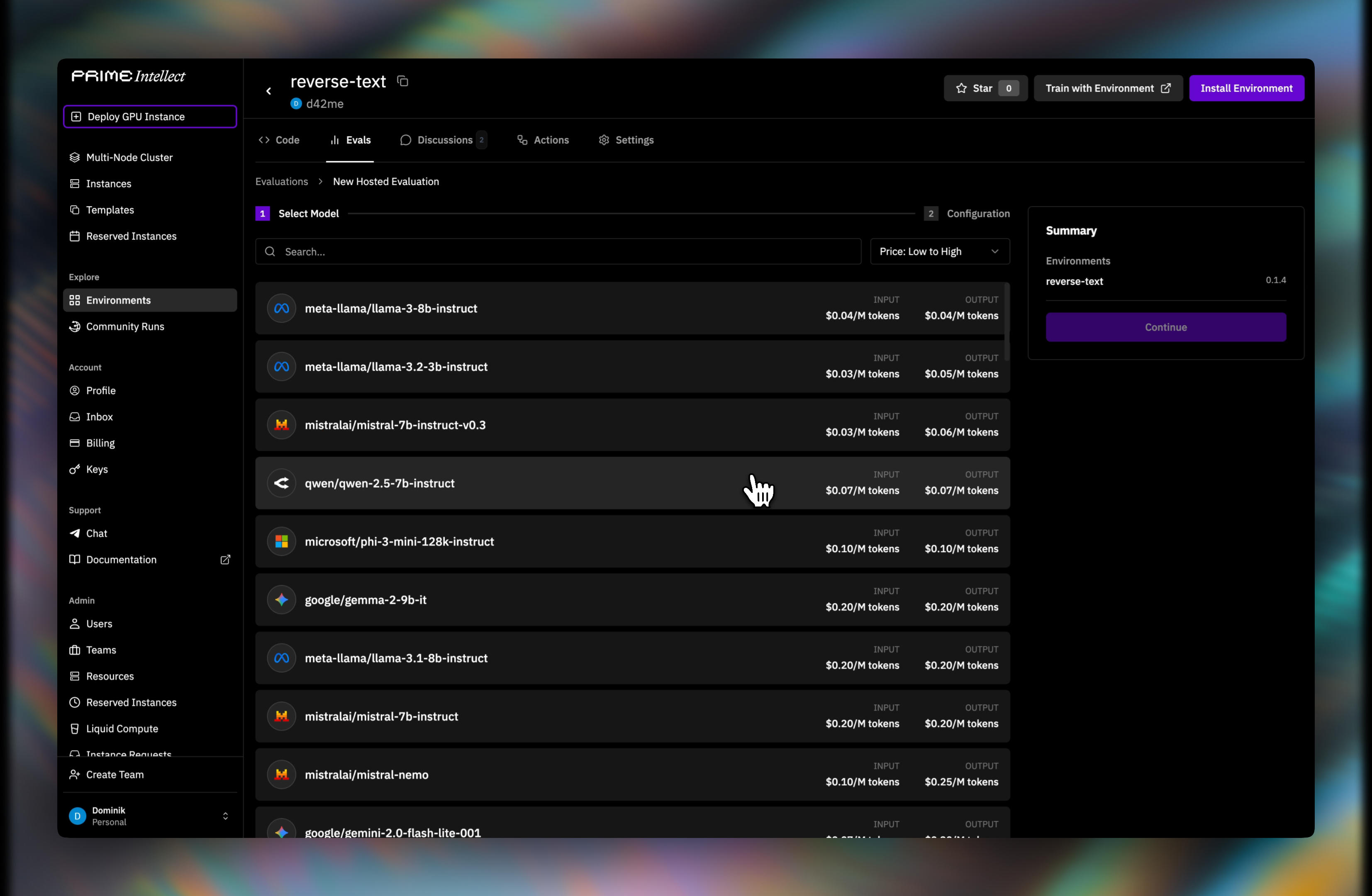
### Step 2: Choose a model
Select an inference model for the run.
 ### Step 3: Configure the run
Set the number of examples, rollouts per example, and any environment arguments.
### Step 3: Configure the run
Set the number of examples, rollouts per example, and any environment arguments.
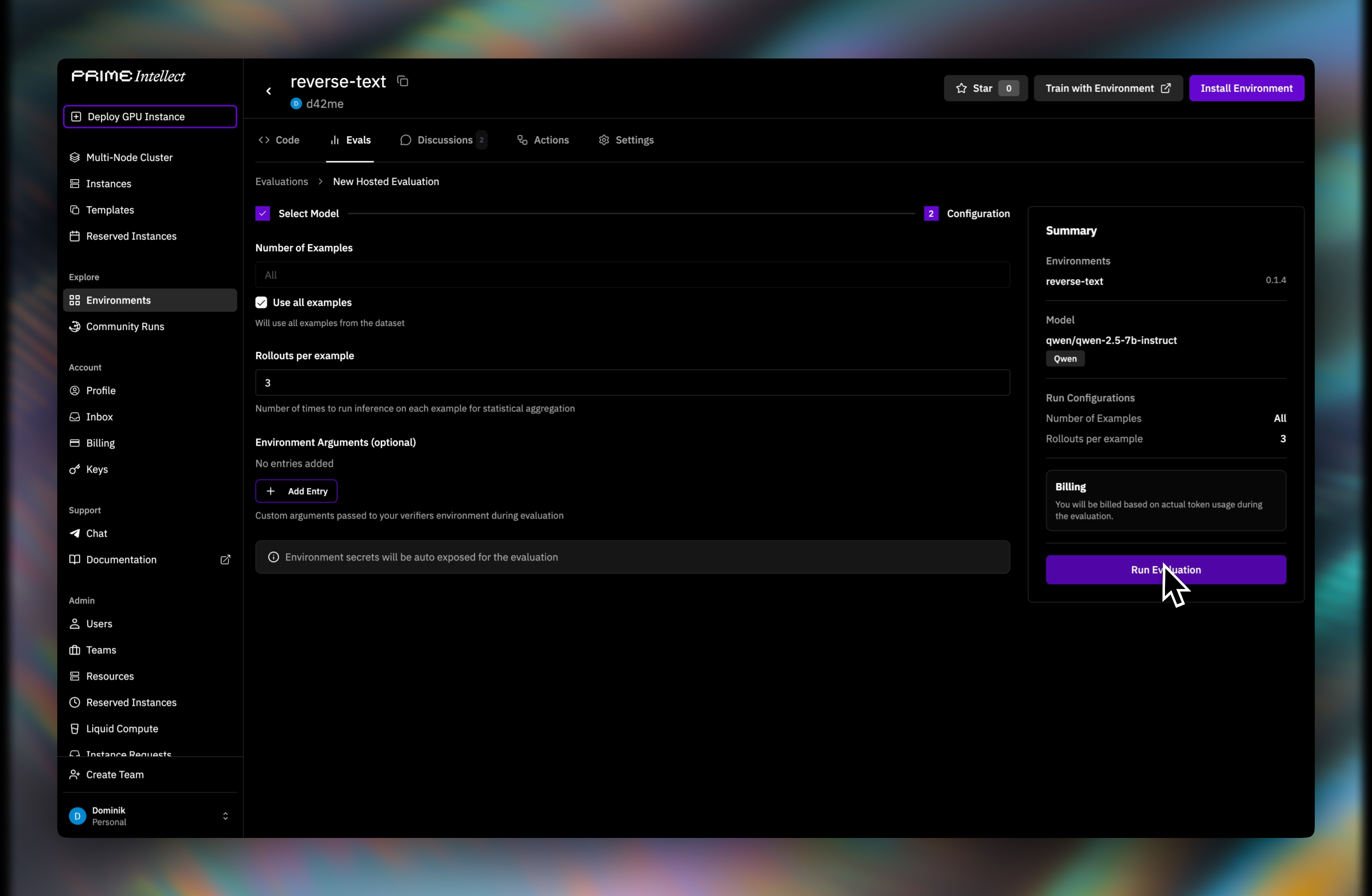 If the environment needs to expose a service during the run, expand **Permissions** and enable **Allow tunnel access for this evaluation**.
Environment secrets linked in the Hub are exposed automatically during hosted evaluation runs. You only need `--custom-secrets` when launching a CLI run with additional per-run secrets.
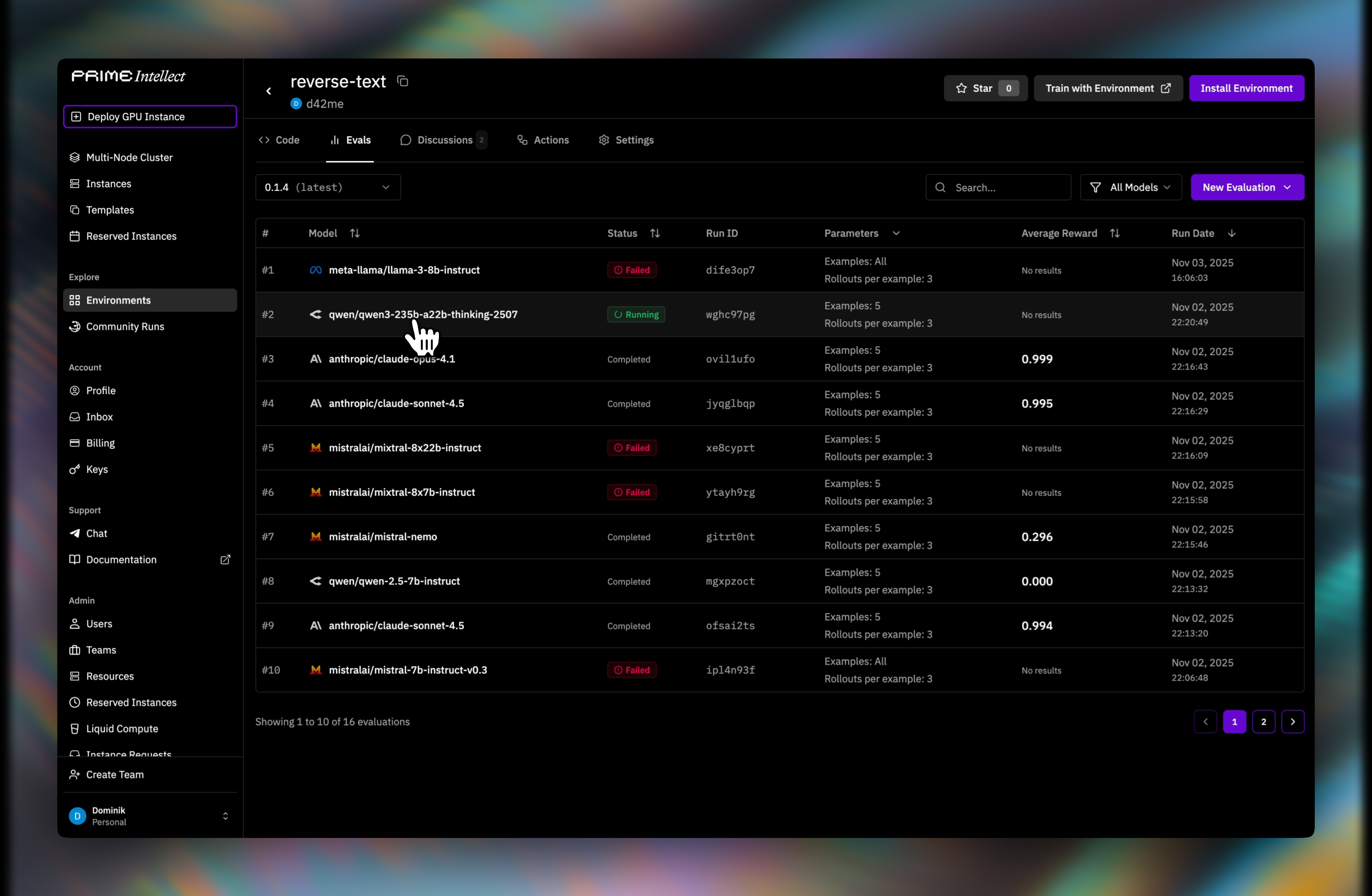
### Step 4: Monitor progress
You will be redirected to the evaluations list where you can watch the run status.
If the environment needs to expose a service during the run, expand **Permissions** and enable **Allow tunnel access for this evaluation**.
Environment secrets linked in the Hub are exposed automatically during hosted evaluation runs. You only need `--custom-secrets` when launching a CLI run with additional per-run secrets.
### Step 4: Monitor progress
You will be redirected to the evaluations list where you can watch the run status.
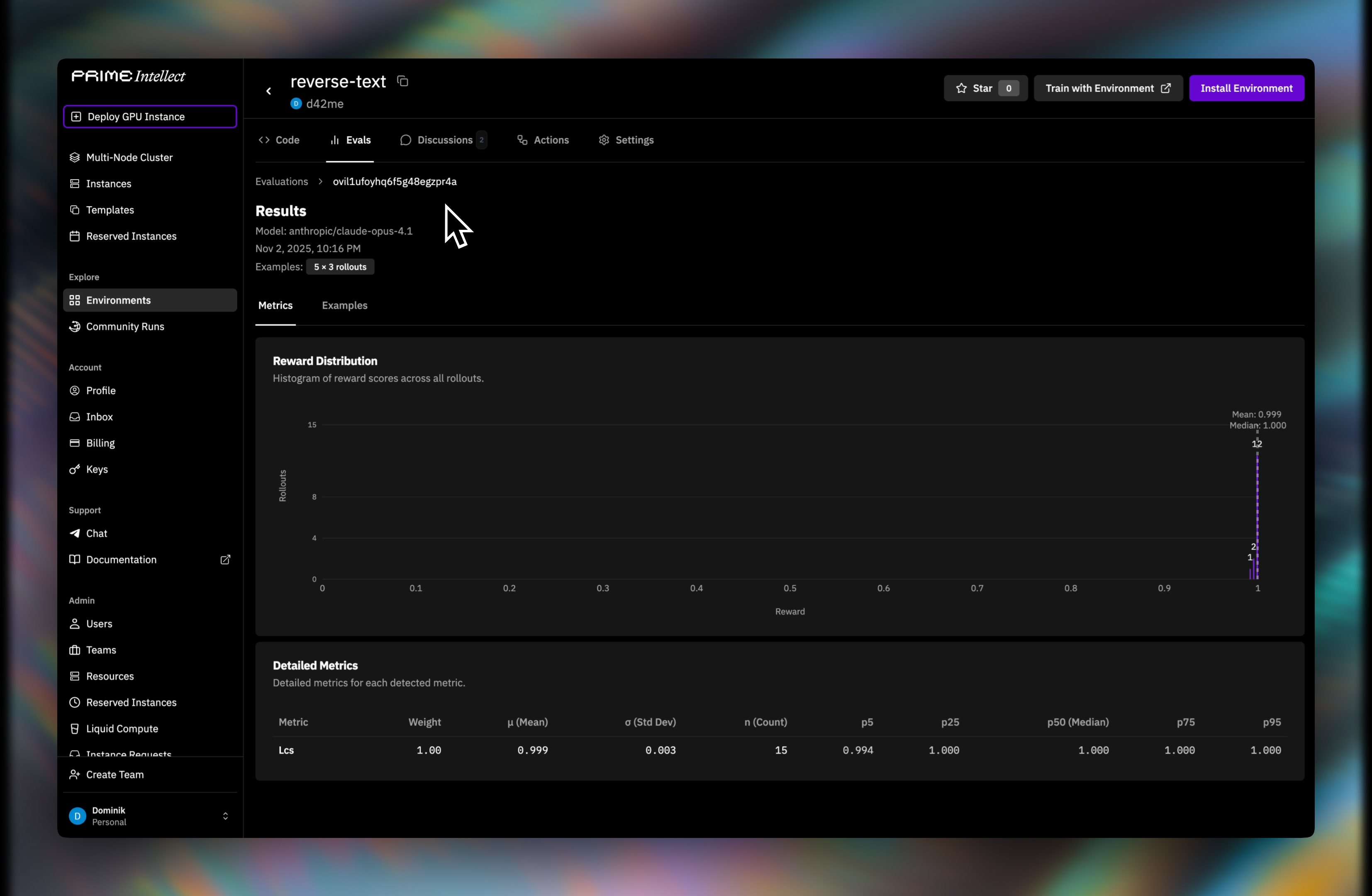
 ### Step 5: Review results
Completed runs show aggregate metrics and per-sample outputs in Prime Evals.
### Step 5: Review results
Completed runs show aggregate metrics and per-sample outputs in Prime Evals.
 ## Failure modes
When a hosted evaluation fails, the platform surfaces the error message and logs.
Common causes:
1. **Environment code errors** — import failures, dependency issues, invalid verifier logic
2. **Missing permissions** — the run needs sandbox, instance, or tunnel access but those flags were not enabled
3. **Missing secrets** — environment-linked or custom secrets were not available
4. **Timeouts** — the run exceeded the configured or platform timeout
5. **Inference issues** — temporary provider or model errors
Start with a small hosted run first, such as `-n 5 -r 1`, then scale up once logs and scores look correct.
## Pricing
Hosted evaluations support two billing modes:
* **Prime Inference (default)** — If you do not pass `--api-base-url`, the run uses Prime Inference pricing for the selected model. The hosted evaluation sandbox runtime is not billed separately.
* **Custom OpenAI-compatible endpoint (CLI/API)** — If you pass `--api-base-url`, the hosted evaluation is billed as sandbox compute on Prime while your external provider bills model tokens directly. In this mode you must provide the provider key through an environment secret or `--custom-secrets`.
In either mode, total cost still depends on:
* The selected model or endpoint pricing
* Prompt and completion token usage
* `num_examples × rollouts_per_example`
* Any extra tool usage triggered by the environment
## When to use dashboard vs CLI
* Use the **dashboard** when you want the simplest point-and-click flow
* Use the **CLI** when you want reproducible commands, TOML configs, log following, or automation in scripts/CI
## Failure modes
When a hosted evaluation fails, the platform surfaces the error message and logs.
Common causes:
1. **Environment code errors** — import failures, dependency issues, invalid verifier logic
2. **Missing permissions** — the run needs sandbox, instance, or tunnel access but those flags were not enabled
3. **Missing secrets** — environment-linked or custom secrets were not available
4. **Timeouts** — the run exceeded the configured or platform timeout
5. **Inference issues** — temporary provider or model errors
Start with a small hosted run first, such as `-n 5 -r 1`, then scale up once logs and scores look correct.
## Pricing
Hosted evaluations support two billing modes:
* **Prime Inference (default)** — If you do not pass `--api-base-url`, the run uses Prime Inference pricing for the selected model. The hosted evaluation sandbox runtime is not billed separately.
* **Custom OpenAI-compatible endpoint (CLI/API)** — If you pass `--api-base-url`, the hosted evaluation is billed as sandbox compute on Prime while your external provider bills model tokens directly. In this mode you must provide the provider key through an environment secret or `--custom-secrets`.
In either mode, total cost still depends on:
* The selected model or endpoint pricing
* Prompt and completion token usage
* `num_examples × rollouts_per_example`
* Any extra tool usage triggered by the environment
## When to use dashboard vs CLI
* Use the **dashboard** when you want the simplest point-and-click flow
* Use the **CLI** when you want reproducible commands, TOML configs, log following, or automation in scripts/CI