> ## Documentation Index
> Fetch the complete documentation index at: https://docs.primeintellect.ai/llms.txt
> Use this file to discover all available pages before exploring further.
# Manage Collaborators
> Add collaborators to private environments on the Environments Hub.
## Overview
You can now share private environments directly with collaborators. Collaborators have read-only access today and can browse metadata, artifacts, and version history while we finish support for writer permissions.
Access collaborator management from each environment's **Settings → Collaborators** section.
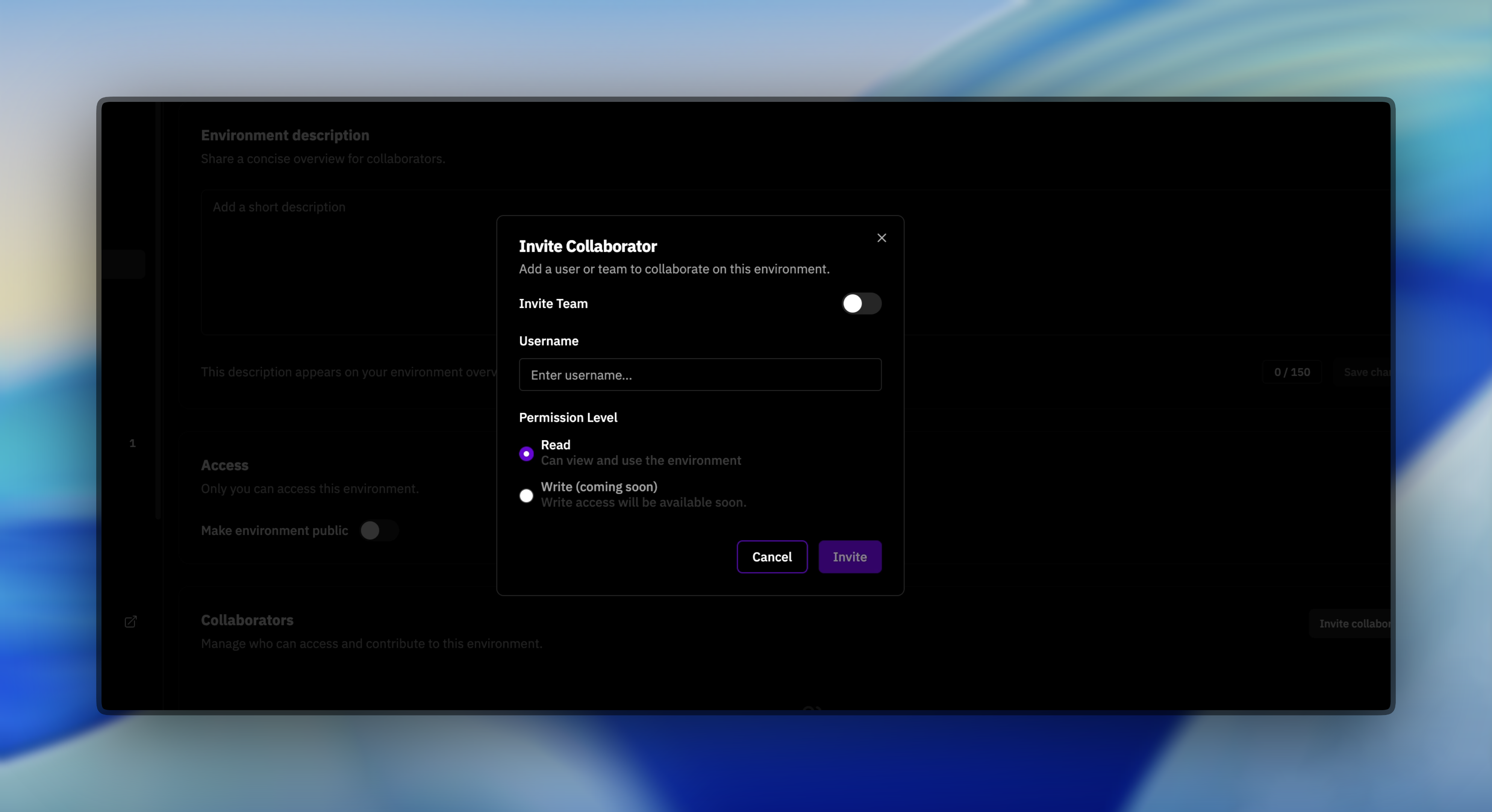 ## Add a collaborator
1. Open the environment in the Environments Hub and switch to the **Collaborators** tab.
2. Select **Add collaborator**.
3. Enter a Prime username or team name. Each owner and team can find these values in their profile page.
4. Confirm to grant read-only access.
Once a collaborator is listed, they can run `prime env info ` in the Prime CLI to review environment details and pull instructions.
## Manage collaborator access
* Remove collaborators at any time from the same tab.
* Collaborators currently inherit read-only permissions; writer access is coming soon.
## Troubleshooting
* **Can't find a collaborator?** Ask them to copy the username or team name exactly as it appears in their profile.
* **Need to share broadly?** Create a team that includes everyone who needs access and add the team identifier once.
* **Seeing an error?** Reach out via our support chat with the environment slug and the identifier you attempted to add.
## Add a collaborator
1. Open the environment in the Environments Hub and switch to the **Collaborators** tab.
2. Select **Add collaborator**.
3. Enter a Prime username or team name. Each owner and team can find these values in their profile page.
4. Confirm to grant read-only access.
Once a collaborator is listed, they can run `prime env info ` in the Prime CLI to review environment details and pull instructions.
## Manage collaborator access
* Remove collaborators at any time from the same tab.
* Collaborators currently inherit read-only permissions; writer access is coming soon.
## Troubleshooting
* **Can't find a collaborator?** Ask them to copy the username or team name exactly as it appears in their profile.
* **Need to share broadly?** Create a team that includes everyone who needs access and add the team identifier once.
* **Seeing an error?** Reach out via our support chat with the environment slug and the identifier you attempted to add.