> ## Documentation Index
> Fetch the complete documentation index at: https://docs.primeintellect.ai/llms.txt
> Use this file to discover all available pages before exploring further.
# Deploy Custom Docker Image
> Deploy a custom Docker image to your Pod
## Setting Up SSH Access
To enable SSH access for your image, the `openssh-server` package must be installed. Many images do not include this package by default and require manual installation. There are three methods to include it in your template:
1. Create a new image using your base image and upload it to **Docker Hub**.
2. Modify your existing pipeline by adding an installation script to the `Dockerfile`.
3. Install it during instance provisioning (not recommended due to performance impact).
If you do not have an existing Dockerfile, you must create one. For example, if you wish to use the [**PyTorch 2.9.0**](https://hub.docker.com/layers/pytorch/pytorch/2.9.0-cuda12.8-cudnn9-runtime/images/sha256-f0ca81b440e252399d9954a45b616ee2540959466aacf3dfc3f856691eee66e8) official image as your base, your Dockerfile should contain the following:
```Dockerfile Dockerfile theme={null}
FROM pytorch/pytorch:2.9.0-cuda12.8-cudnn9-runtime
# Install SSH server and dependencies
RUN apt-get update && \
apt-get install -y openssh-server && \
apt-get clean && \
rm -rf /var/lib/apt/lists/*
# Configure SSH
RUN mkdir -p /var/run/sshd && \
sed -i 's/#PermitRootLogin prohibit-password/PermitRootLogin prohibit-password/' /etc/ssh/sshd_config && \
sed -i 's@session\s*required\s*pam_loginuid.so@session optional pam_loginuid.so@g' /etc/pam.d/sshd && \
ssh-keygen -A
# Create SSH directory for root
RUN mkdir -p /root/.ssh && \
chmod 700 /root/.ssh
```
Ensure that [Docker](https://docs.docker.com/) is installed on your system. If not already authenticated, log in to Docker Hub:
```bash theme={null}
docker login
```
To build your Docker image, execute the following command:
```bash theme={null}
docker build -t your-dockerhub-username/your-image-name:latest .
```
If you are using a different architecture than **x86\_64** (e.g., **ARM64** for Apple Silicon), you may encounter an `InvalidBaseImagePlatform` error.
To resolve this issue, specify the target platform using the `--platform linux/amd64` argument:
```bash theme={null}
docker build --platform linux/amd64 -t your-dockerhub-username/your-image-name:latest .
```
Push your image to Docker Hub:
```bash theme={null}
docker push your-dockerhub-username/your-image-name:latest
```
Once your image is successfully pushed and available on Docker Hub, you can reference it as the **Image Name** in your template configuration.
#### Configure Template Startup Script
In the **Advanced** section of your custom template dialog, configure the **Container Start Script** as follows:
```bash theme={null}
#!/bin/bash
# Set up SSH key from environment variable
if [ ! -z "$PUBLIC_KEY" ]; then
echo "$PUBLIC_KEY" > /root/.ssh/authorized_keys
chmod 600 /root/.ssh/authorized_keys
fi
# Set SSH port from environment variable
if [ ! -z "$SSH_PORT" ]; then
sed -i '/^#*Port /d' /etc/ssh/sshd_config
echo "Port $SSH_PORT" >> /etc/ssh/sshd_config
fi
echo "Starting SSH server on port ${SSH_PORT:-22}"
# Start SSH service in foreground
exec /usr/sbin/sshd -D
```
This configuration ensures that both `PUBLIC_KEY` and `SSH_PORT` environment variables are properly injected during the provisioning process.
If you already have a `Dockerfile` for your image, add the following configuration:
```Dockerfile theme={null}
# Install SSH server and dependencies
RUN apt-get update && \
apt-get install -y openssh-server && \
apt-get clean && \
rm -rf /var/lib/apt/lists/*
# Configure SSH
RUN mkdir -p /var/run/sshd && \
sed -i 's/#PermitRootLogin prohibit-password/PermitRootLogin prohibit-password/' /etc/ssh/sshd_config && \
sed -i 's@session\s*required\s*pam_loginuid.so@session optional pam_loginuid.so@g' /etc/pam.d/sshd && \
ssh-keygen -A
# Create SSH directory for root
RUN mkdir -p /root/.ssh && \
chmod 700 /root/.ssh
```
The `apt-get update` command can be omitted if it has already been executed earlier in your Dockerfile. Similarly, the following cleanup commands can be removed if already present:
```Dockerfile theme={null}
apt-get clean && \
rm -rf /var/lib/apt/lists/*
```
These commands remove unnecessary package files to reduce the final image size.
#### Configure Template Startup Script
In the **Advanced** section of your custom template dialog, configure the **Container Start Script** as follows:
```bash theme={null}
#!/bin/bash
# Set up SSH key from environment variable
if [ ! -z "$PUBLIC_KEY" ]; then
echo "$PUBLIC_KEY" > /root/.ssh/authorized_keys
chmod 600 /root/.ssh/authorized_keys
fi
# Set SSH port from environment variable
if [ ! -z "$SSH_PORT" ]; then
sed -i '/^#*Port /d' /etc/ssh/sshd_config
echo "Port $SSH_PORT" >> /etc/ssh/sshd_config
fi
echo "Starting SSH server on port ${SSH_PORT:-22}"
# Start SSH service in foreground
exec /usr/sbin/sshd -D
```
This configuration ensures that both `PUBLIC_KEY` and `SSH_PORT` environment variables are properly injected during the provisioning process.
If you prefer not to modify the Docker image, you can add the following script to your template startup script. Note that this approach installs the SSH server during container startup, which significantly increases provisioning time:
```bash theme={null}
#!/bin/bash
# Install SSH server
apt-get update
apt-get install -y openssh-server
# Configure SSH
mkdir -p /var/run/sshd
sed -i 's/#PermitRootLogin prohibit-password/PermitRootLogin prohibit-password/' /etc/ssh/sshd_config
sed -i 's@session\s*required\s*pam_loginuid.so@session optional pam_loginuid.so@g' /etc/pam.d/sshd
# Set up SSH key
if [ ! -z "$PUBLIC_KEY" ]; then
mkdir -p /root/.ssh
echo "$PUBLIC_KEY" > /root/.ssh/authorized_keys
chmod 700 /root/.ssh
chmod 600 /root/.ssh/authorized_keys
fi
# Set SSH port
if [ ! -z "$SSH_PORT" ]; then
sed -i "s/#Port 22/Port $SSH_PORT/" /etc/ssh/sshd_config
fi
# Generate host keys if missing (required for some base images)
if [ -z "$(ls /etc/ssh/ssh_host_* 2>/dev/null || true)" ]; then
ssh-keygen -A
fi
# Start SSH service
/usr/sbin/sshd -D
```
## Environment Variables
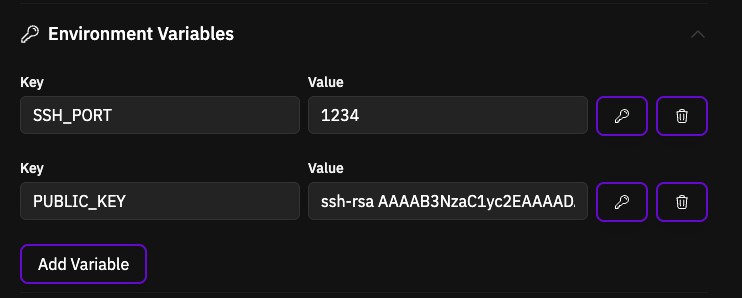
Configure the following environment variables in your template settings to customize SSH access:
| Variable | Description | Example Value |
| ------------ | -------------------------------------- | ---------------------------- |
| `SSH_PORT` | Custom SSH port | `1234` |
| `PUBLIC_KEY` | Your SSH public key for authentication | `ssh-rsa AAAAB3NzaC1yc2E...` |
 ## Connecting via SSH
Once your Pod is running with SSH properly configured, establish a connection using the following command:
```bash theme={null}
ssh -p root@
```
While `root` is the default user for most images, this may vary depending on your base image. Ensure that the user specified in your SSH connection matches the system user configured within your container image.
## Testing Your Image Locally
To test your image locally, verify that the SSH service functions correctly before deploying to production.
First, create the startup script file:
```bash custom_start_script.sh theme={null}
#!/bin/bash
# Set up SSH key from environment variable
if [ ! -z "$PUBLIC_KEY" ]; then
echo "$PUBLIC_KEY" > /root/.ssh/authorized_keys
chmod 600 /root/.ssh/authorized_keys
fi
# Set SSH port from environment variable
if [ ! -z "$SSH_PORT" ]; then
sed -i '/^#*Port /d' /etc/ssh/sshd_config
echo "Port $SSH_PORT" >> /etc/ssh/sshd_config
fi
echo "Starting SSH server on port ${SSH_PORT:-22}"
# Start SSH service in foreground
exec /usr/sbin/sshd -D
```
Ensure that the startup script has executable permissions:
```bash theme={null}
chmod +x ./custom_start_script.sh
```
If you built your image locally using a `Dockerfile`, first build the image:
```bash theme={null}
docker build --platform linux/amd64 -t your-image-name:latest .
```
Then run the container with the following command:
```bash theme={null}
docker run --rm \
--name pi-docker-runner \
--privileged \
--ipc=host \
--shm-size=8G \
-p 22:22 \
-e PUBLIC_KEY="your-public-key" \
-e SSH_PORT=22 \
-v ./custom_start_script.sh:/custom_start_script.sh \
--entrypoint /bin/bash \
your-image-name:latest \
-c "/custom_start_script.sh"
```
To test an image directly from Docker Hub without building locally:
```bash theme={null}
docker run --rm \
--name pi-docker-runner \
--privileged \
--ipc=host \
--shm-size=8G \
-p 22:22 \
-e PUBLIC_KEY="your-public-key" \
-e SSH_PORT=22 \
-v ./custom_start_script.sh:/custom_start_script.sh \
--entrypoint /bin/bash \
your-dockerhub-username/your-image-name:latest \
-c "/custom_start_script.sh"
```
Replace `your-public-key` with your actual SSH public key content (e.g., `ssh-rsa AAAAB3NzaC1yc2E...`).
Once the container is running, connect via SSH using:
```bash theme={null}
ssh -p 22 root@localhost -i local_private_key.pem
```
The private key file must have permissions set to `600` (or `400` on some systems) for SSH to accept it. You can set this using:
```bash theme={null}
chmod 600 local_private_key.pem
```
## Connecting via SSH
Once your Pod is running with SSH properly configured, establish a connection using the following command:
```bash theme={null}
ssh -p root@
```
While `root` is the default user for most images, this may vary depending on your base image. Ensure that the user specified in your SSH connection matches the system user configured within your container image.
## Testing Your Image Locally
To test your image locally, verify that the SSH service functions correctly before deploying to production.
First, create the startup script file:
```bash custom_start_script.sh theme={null}
#!/bin/bash
# Set up SSH key from environment variable
if [ ! -z "$PUBLIC_KEY" ]; then
echo "$PUBLIC_KEY" > /root/.ssh/authorized_keys
chmod 600 /root/.ssh/authorized_keys
fi
# Set SSH port from environment variable
if [ ! -z "$SSH_PORT" ]; then
sed -i '/^#*Port /d' /etc/ssh/sshd_config
echo "Port $SSH_PORT" >> /etc/ssh/sshd_config
fi
echo "Starting SSH server on port ${SSH_PORT:-22}"
# Start SSH service in foreground
exec /usr/sbin/sshd -D
```
Ensure that the startup script has executable permissions:
```bash theme={null}
chmod +x ./custom_start_script.sh
```
If you built your image locally using a `Dockerfile`, first build the image:
```bash theme={null}
docker build --platform linux/amd64 -t your-image-name:latest .
```
Then run the container with the following command:
```bash theme={null}
docker run --rm \
--name pi-docker-runner \
--privileged \
--ipc=host \
--shm-size=8G \
-p 22:22 \
-e PUBLIC_KEY="your-public-key" \
-e SSH_PORT=22 \
-v ./custom_start_script.sh:/custom_start_script.sh \
--entrypoint /bin/bash \
your-image-name:latest \
-c "/custom_start_script.sh"
```
To test an image directly from Docker Hub without building locally:
```bash theme={null}
docker run --rm \
--name pi-docker-runner \
--privileged \
--ipc=host \
--shm-size=8G \
-p 22:22 \
-e PUBLIC_KEY="your-public-key" \
-e SSH_PORT=22 \
-v ./custom_start_script.sh:/custom_start_script.sh \
--entrypoint /bin/bash \
your-dockerhub-username/your-image-name:latest \
-c "/custom_start_script.sh"
```
Replace `your-public-key` with your actual SSH public key content (e.g., `ssh-rsa AAAAB3NzaC1yc2E...`).
Once the container is running, connect via SSH using:
```bash theme={null}
ssh -p 22 root@localhost -i local_private_key.pem
```
The private key file must have permissions set to `600` (or `400` on some systems) for SSH to accept it. You can set this using:
```bash theme={null}
chmod 600 local_private_key.pem
```