Step-by-Step Guide
1
Prerequisites
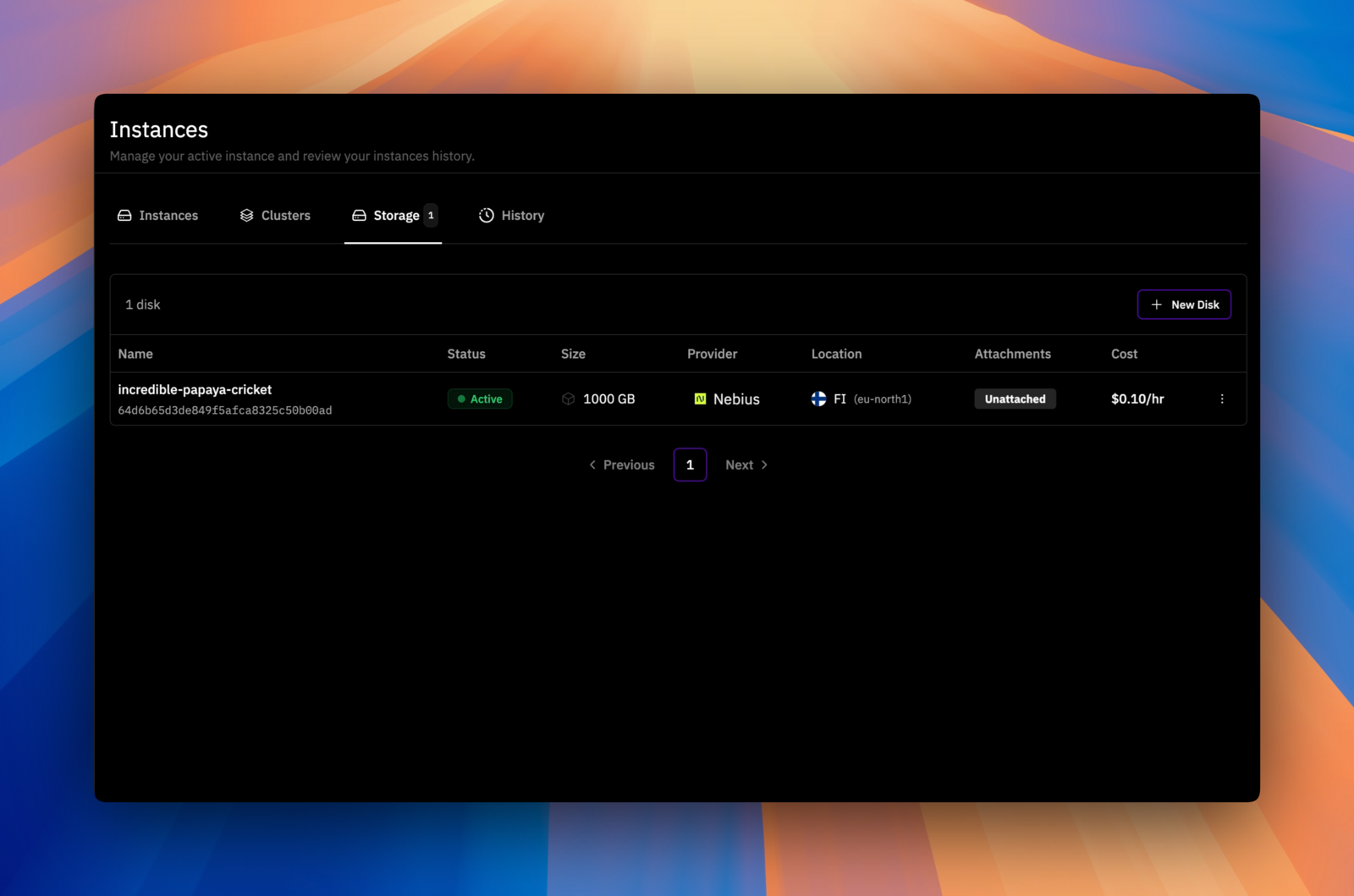
- An active persistent disk with
Activestatus - Available instances in the same provider and location as your disk
2
Filter instances by your existing disks
Go to 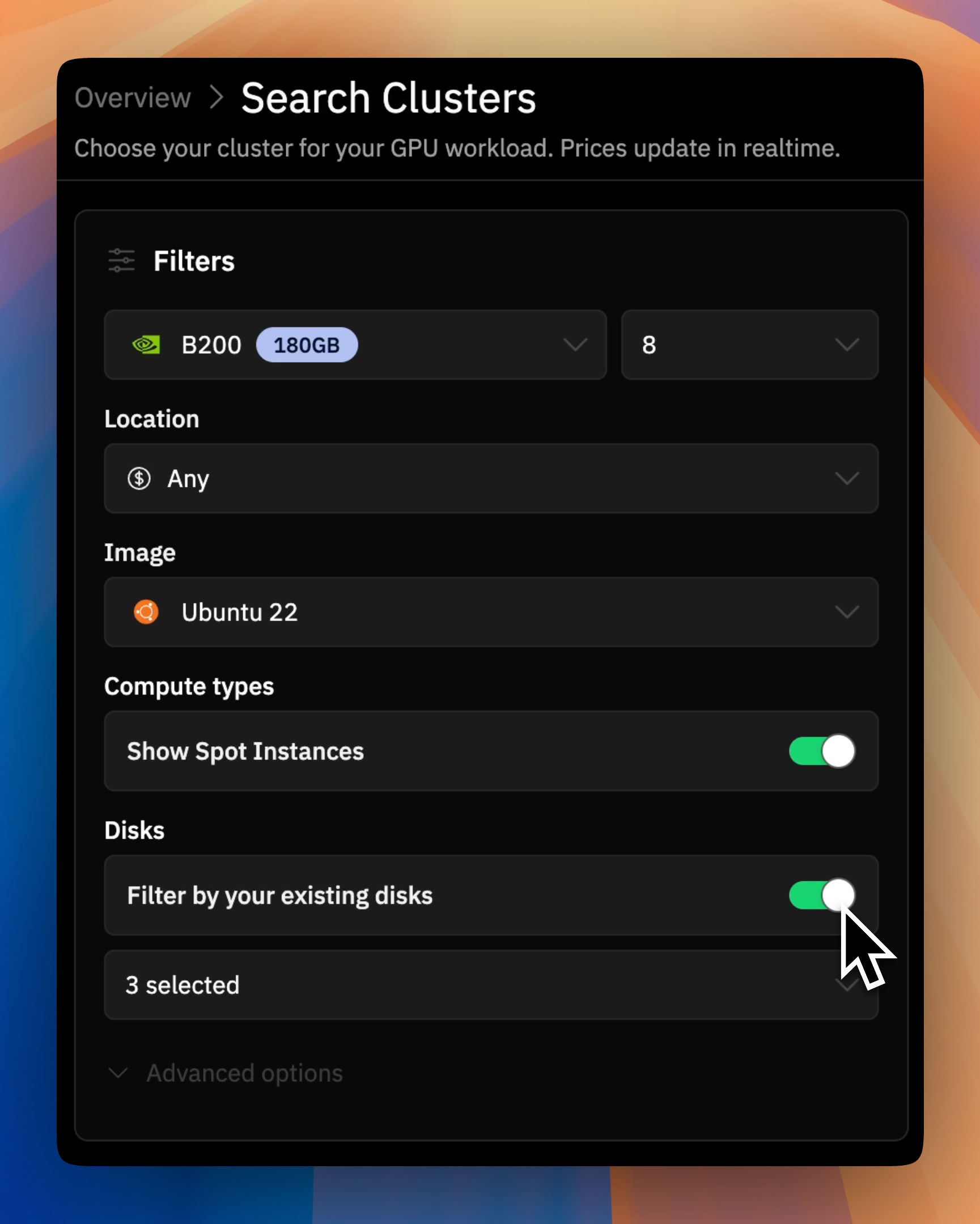
Deploy GPU Instance. Use the Filter by your existing disks toggle to show only instances in locations where you have persistent disks available.3
Select a compatible provider
Look for providers with the 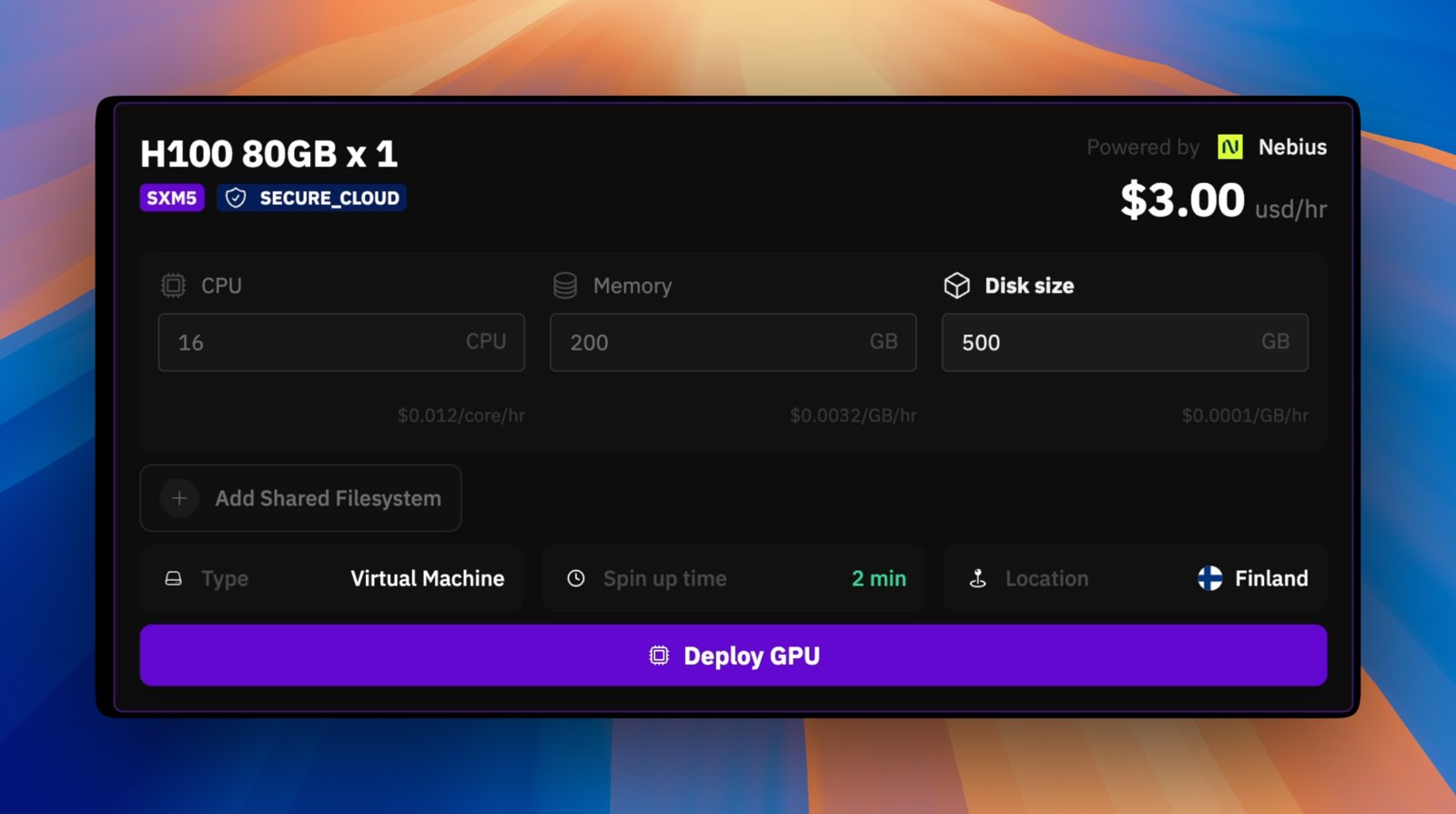
Add Shared Filesystem button, indicating disk compatibility.Persistent disks are location-specific. Ensure you’re selecting instances in the same provider and datacenter as your disk.
4
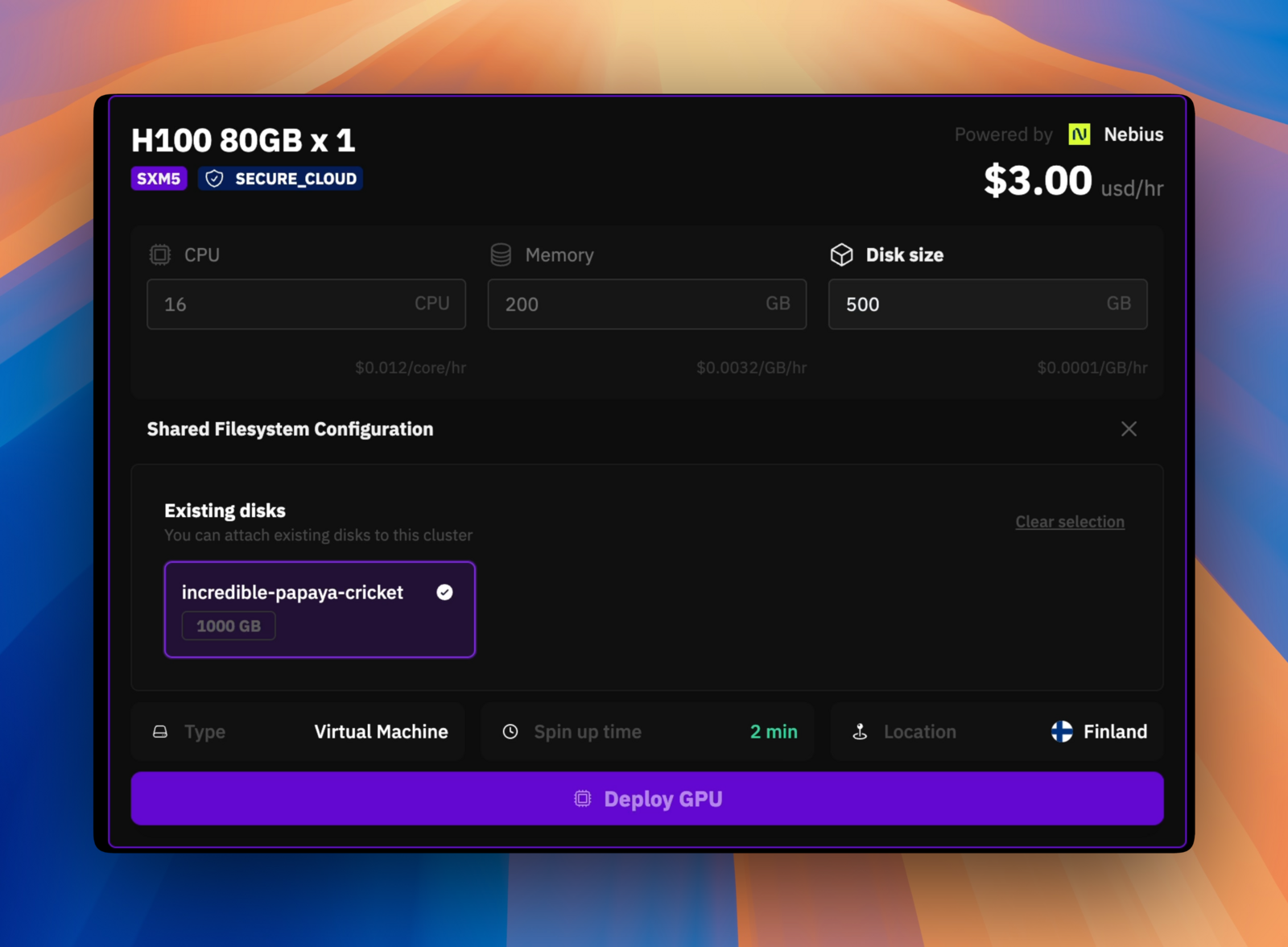
Select your existing disk and provision the instance
5
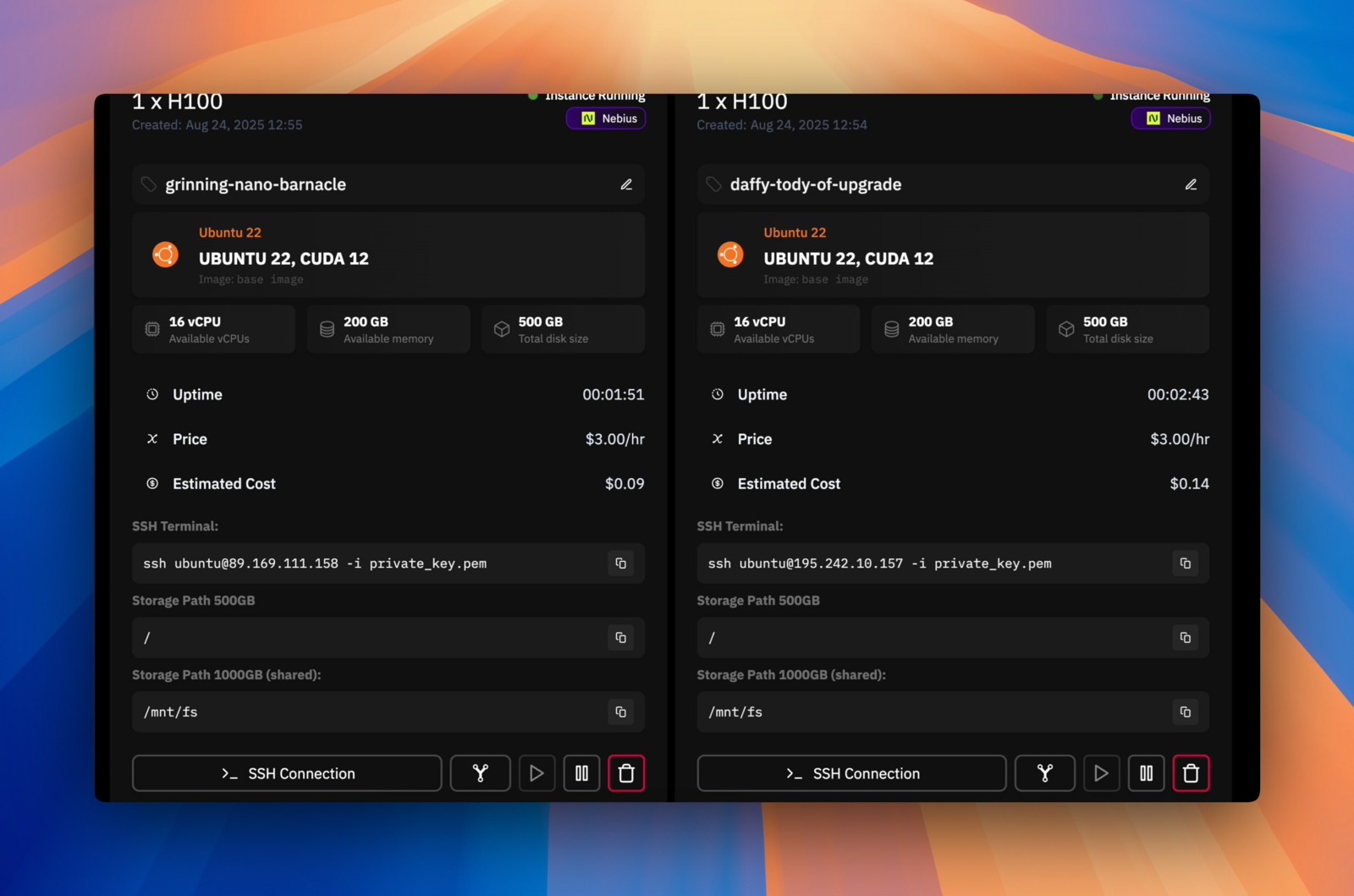
After the instance deploys, check the instance details to find your shared disk's mounting path. The same disk can be attached to multiple instances simultaneously.